Why Is My E-Ink Color Smartphone Refresh Rate So Slow Browsing Websites?
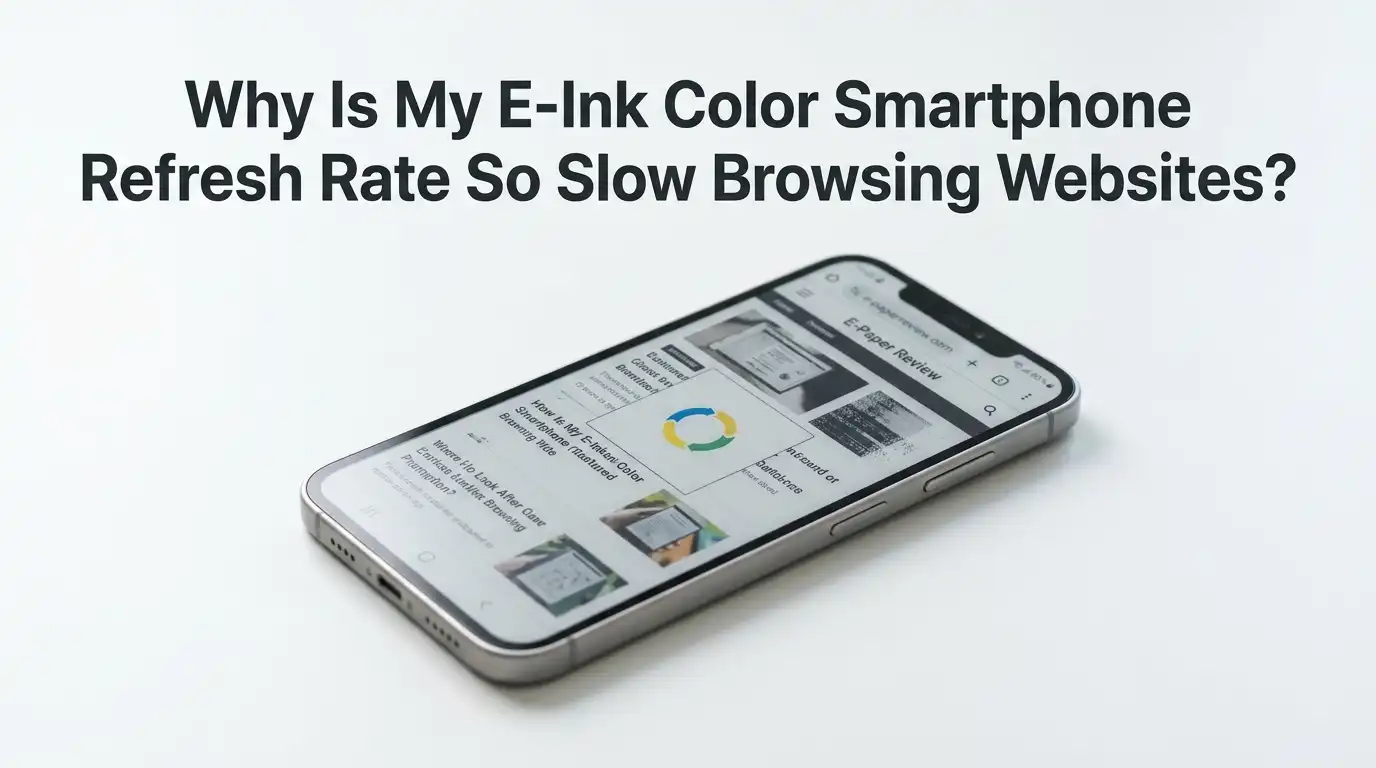
Your e-ink color phone feels amazing for reading. Then you open a website. Suddenly the screen drags, smears, and stutters. You scroll, and a faint shadow of the last page lingers behind the new one. You tap a link, and the page seems to think before it loads.
This is one of the most common frustrations new e-ink phone owners report. The good news is that most of the slowness is fixable, and the rest can be managed with smart habits. You do not need to buy a new device to enjoy faster browsing.
This guide explains exactly why your color e-ink screen slows down on websites. Then it walks you through clear, step-by-step solutions you can apply today.
In a Nutshell:
- E-ink is built for static text, not motion. The screen moves tiny ink particles physically, so it can never match the speed of LCD or OLED phones. Websites full of animations and images push e-ink past its comfort zone.
- Color e-ink is slower than black and white e-ink. Color panels like Kaleido 3 add a color filter layer on top, which lowers brightness and demands heavier refreshes. This is normal, not a defect.
- Refresh modes are your most powerful tool. Devices offer modes like Normal, Speed, A2, and Regal. Switching to a faster mode makes browsing feel dramatically smoother, though it trades away some image quality.
- Heavy websites are often the real problem. Ad-loaded, JavaScript-heavy pages slow down every browser. Reader modes, ad blockers, and lightweight browsers remove the clutter that chokes your screen.
- Ghosting and slowness are different issues. Ghosting is the faint leftover image. Slowness is the lag. A manual full refresh clears ghosting instantly and keeps the screen feeling fresh.
- Small habit changes add up. Scrolling in chunks, disabling animations, and using dark mode wisely can each shave off lag and improve your daily experience.
How E-Ink Screens Actually Work and Why That Matters
To fix the slowness, you first need to understand it. An e-ink screen does not light up like a normal phone. Instead, it holds millions of tiny capsules filled with black and white ink particles.
When the screen changes, an electric charge pushes these particles up or down. That physical movement takes time. This is why people say e-ink has no true “refresh rate” like LCD does.
A normal phone refreshes 60 or 120 times per second. An e-ink screen often updates only a few times per second at best. The ink simply cannot move that fast. Websites expect rapid motion, so the mismatch creates the lag you feel when scrolling.
Once you accept this physical limit, the solutions make much more sense. You are not fixing a broken phone. You are working with the technology instead of against it.
Why Color E-Ink Is Slower Than Black and White E-Ink
Color e-ink phones use a technology like E Ink Kaleido 3. This adds a thin color filter array on top of the standard black and white ink layer. That extra layer is the reason for the slowdown.
The color filter blocks some light, so the screen looks dimmer. To show accurate colors, the device must run more complex refresh cycles than a plain black and white panel. More work per update means slower updates.
Black and white content also looks slightly softer on color screens. You may notice a faint rainbow shimmer on sharp text. This happens because the color grid sits between your eyes and the ink.
So if your old black and white e-reader felt faster, you are not imagining it. Color always carries a speed cost. Knowing this helps you set realistic expectations while you apply the fixes below.
Step 1: Switch Your Device to a Faster Refresh Mode
This is the single most effective fix, so start here. Most e-ink phones offer several refresh modes. They usually carry names like Normal, Speed, A2, and Regal (or HD).
Normal mode gives the best image quality but the slowest speed. A2 mode and Speed mode sacrifice color depth and detail to make scrolling much faster. For web browsing, faster modes win.
To change modes, open your device control center, find the e-ink or display settings, and select a faster option. On many phones, this is one tap away through a side menu or floating ball.
Pros: Browsing feels far smoother, scrolling lag drops sharply, and the change is instant.
Cons: Images look grainier, colors fade, and text can lose sharpness. You may want to switch back to Normal mode for reading articles closely.
Step 2: Use a Lightweight or E-Ink Friendly Browser
Your browser choice matters more than most people think. Heavy browsers load ads, trackers, videos, and scripts that force constant screen updates. Every one of those updates fights your slow screen.
Switch to a lightweight browser that strips out clutter. Browsers built for speed or privacy load fewer elements, so your e-ink screen has less to redraw. The page feels calmer and faster.
Some e-ink phones even include a browser tuned for e-paper. If yours does, try it first. These browsers often disable animations automatically and favor clean text layouts.
Pros: Pages load faster, fewer animations trigger lag, and battery life often improves.
Cons: Some lightweight browsers break complex websites or block features you need. You may need to keep a backup browser for sites that misbehave. Test a few and keep the one that feels smoothest.
Step 3: Turn On Reader Mode to Strip Away the Clutter
Reader mode is a hidden hero for e-ink browsing. It takes a messy webpage and reformats it into clean text with simple images. This removes the heavy elements that slow your screen.
Most browsers offer a reader view. Look for an icon shaped like a book or a small page in the address bar. Tap it, and the page transforms instantly.
On an e-ink screen, the difference is huge. The page becomes mostly black text on a white background. That is exactly what e-ink displays best, so scrolling feels far quicker.
Pros: Reading is faster, ghosting drops, and the layout matches what e-ink does well.
Cons: Reader mode does not work on every page, such as shopping sites or web apps. It also hides menus and buttons you sometimes need. Use it for articles, news, and blogs where text is the main focus.
Step 4: Block Ads and Disable Animations
Ads are a major cause of slowness on any browser, and e-ink screens suffer the most. Animated banners and auto-play videos force the screen to refresh again and again. Each refresh adds lag and ghosting.
Install a reliable ad blocker or use a browser with one built in. This single step can cut your page load times dramatically. Fewer moving elements means a calmer, faster screen.
Next, look for browser or system settings that reduce animations. Some phones offer a developer setting to lower animation scale. Turning animations off removes the stutter that e-ink handles poorly.
Pros: Pages feel lighter, scrolling smooths out, and you avoid distracting flicker.
Cons: Some sites detect ad blockers and ask you to disable them. A few pages may not display correctly without their normal scripts. Keep a whitelist for sites you trust and want to support.
Step 5: Clear Ghosting With a Manual Full Refresh
Ghosting is not the same as slowness, but it makes browsing feel worse. Ghosting is the faint shadow of old text or images left behind after the screen changes. Over time, the page looks dirty and hard to read.
The fix is a full refresh. This flashes the whole screen black and white once, then redraws it cleanly. It wipes away every leftover trace instantly.
Many e-ink phones let you pin a refresh button on the screen or assign it to a gesture. Set this up so it is always one tap away. Some devices also let you choose how often the screen refreshes automatically.
Pros: The screen looks crisp again, text becomes easier to read, and the effect is immediate.
Cons: The black flash can feel jarring, and frequent refreshes use a little more battery. A refresh every few pages usually keeps things clean without slowing you down.
Step 6: Adjust the Refresh Interval and Sensitivity Settings
Beyond the main modes, many e-ink phones offer fine control over refresh behavior. These deeper settings let you balance speed and clarity to match your habits.
Look for a setting called refresh interval or “full refresh after X pages.” Setting this to refresh more often keeps ghosting low. Setting it lower keeps scrolling fast but allows more ghosting buildup.
Some devices also include an animation filter or contrast slider. Adjusting these can sharpen text or reduce smearing during scrolling. A value around the middle range often works well for most users.
Pros: You get a personalized balance that fits your browsing style, and you can fine tune over time.
Cons: Too many adjustments can confuse you, and extreme settings may hurt either speed or clarity. Change one setting at a time so you can see exactly what each one does before moving on.
Step 7: Scroll in Small Chunks Instead of Flinging
The way you scroll changes how your screen performs. A fast fling scroll forces the screen to redraw dozens of frames in a second. E-ink cannot keep up, so you get a blurry smear.
Instead, scroll in short, controlled swipes. Move down one section at a time, then pause. The screen has a moment to settle, and the next view appears clean and readable.
Some e-ink browsers offer a page-by-page scroll option. This jumps the page down in fixed steps, like turning a page in a book. It matches e-ink far better than continuous scrolling.
Pros: Reading feels steady, ghosting drops, and you avoid the dizzy blur of fast scrolling.
Cons: It takes a little patience and feels slower than flinging on a normal phone. Once it becomes a habit, most users find it more comfortable for long reading sessions anyway.
Step 8: Manage Dark Mode and High Contrast Wisely
Dark mode helps on glowing phones, but e-ink works differently. E-ink screens reflect light like paper, so a white background with black text is their natural strength.
Dark mode on e-ink often makes text gray instead of crisp white. This can lower contrast and increase ghosting. For most websites, a clean light theme reads faster and clearer.
That said, some users prefer dark mode for night reading. If you use it, pair it with a manual refresh to clear the heavier ghosting that dark backgrounds create. Test both and see which feels sharper to your eyes.
Pros of light mode: Better contrast, less ghosting, and faster-feeling refreshes.
Cons of light mode: It can feel bright in a dark room, even on a reflective screen. Dark mode helps at night but usually adds ghosting, so use refresh often when you switch to it.
Step 9: Keep Your Software and Firmware Updated
Manufacturers improve e-ink performance through software far more often than you might expect. Firmware updates frequently include better refresh algorithms and smoother browsing tweaks.
Check your device settings for a system update at least once a month. A single update can noticeably improve scrolling speed and reduce ghosting without you changing any habits.
Update your browser too. Browser developers optimize their apps regularly, and a newer version may handle heavy pages more efficiently. Outdated software is a quiet cause of slowdowns many people overlook.
Pros: You get free performance gains, bug fixes, and sometimes brand new refresh modes.
Cons: Rarely, an update can change settings you liked or introduce a new quirk. Read the update notes when possible, and know that most updates help far more than they hurt. Restart your phone after updating to apply everything cleanly.
Step 10: Close Background Apps and Free Up Memory
A slow phone makes a slow screen feel even worse. When too many apps run in the background, your processor struggles, and every screen update gets delayed.
Close apps you are not using before a browsing session. Open your recent apps view and swipe away the ones you do not need. This frees up memory for the browser to work smoothly.
Also clear your browser cache from time to time. A bloated cache can slow page loads and make the screen lag. A clean browser responds faster to your taps and scrolls.
Pros: The whole phone feels quicker, pages load faster, and the screen keeps up better.
Cons: Closing apps means they reload when you reopen them, which takes a moment. Clearing cache may log you out of some sites. The trade is usually worth it for a smoother browsing experience.
Step 11: Set Realistic Expectations and Match the Task to the Tool
This last step is about mindset, and it matters. An e-ink color phone will never browse like a flagship OLED phone. That is the nature of the technology, not a flaw you can fully erase.
Use your e-ink phone for what it does best: reading articles, news, blogs, and text-heavy pages. For these, the fixes above make browsing genuinely pleasant and easy on your eyes.
For tasks that demand speed, like watching videos or playing games, reach for a different device or accept the limits. Trying to force fast motion onto e-ink only leads to frustration.
Pros of this mindset: You enjoy the calm, paper-like reading e-ink offers without constant disappointment.
Cons: You may need a second device for motion-heavy tasks. For many users, that trade is exactly the point of owning an e-ink phone in the first place: less glare, less distraction, and easier reading.
Frequently Asked Questions
Why does my e-ink color phone leave shadows of old pages?
Those shadows are called ghosting. They happen because some ink particles do not fully reset between updates. A manual full refresh clears them instantly. You can also set the screen to refresh automatically every few pages to keep things clean.
Will a faster refresh mode damage my screen?
No. Switching between modes like A2, Speed, or Normal is completely safe and built for daily use. Faster modes only trade image quality for speed. You can change modes as often as you like without any harm to the display or the ink.
Is color e-ink always slower than black and white e-ink?
Yes, generally. Color panels add a filter layer that requires heavier refresh cycles. This makes them slightly slower and dimmer than plain black and white e-ink. The difference is built into the technology, so no setting can fully remove it.
Can I make my e-ink phone browse as fast as a normal phone?
Not quite. E-ink moves physical ink particles, so it cannot match the speed of LCD or OLED screens. You can make it much smoother, though, by using faster modes, reader mode, and a lightweight browser. The goal is comfortable browsing, not flagship speed.
Does dark mode help or hurt e-ink browsing?
For most websites, light mode works better. E-ink reflects light like paper, so black text on white gives the best contrast and the least ghosting. Dark mode can help at night, but it usually increases ghosting, so refresh the screen more often when you use it.
Why do some websites lag more than others?
Heavy websites load many ads, videos, and scripts. Each one forces extra screen updates that your slow display struggles to handle. Reader mode and ad blockers strip away this clutter. Simple, text-focused sites will always feel faster on e-ink than busy, media-heavy ones.

Hi, I’m Rue Hessel, the founder and voice behind TheGenTool. I’m a passionate tech enthusiast who loves exploring the latest gadgets, smart devices, and electronics that shape our everyday lives. Through my website, I share honest, hands-on reviews of trending Amazon products to help you make smarter and more confident buying decisions.