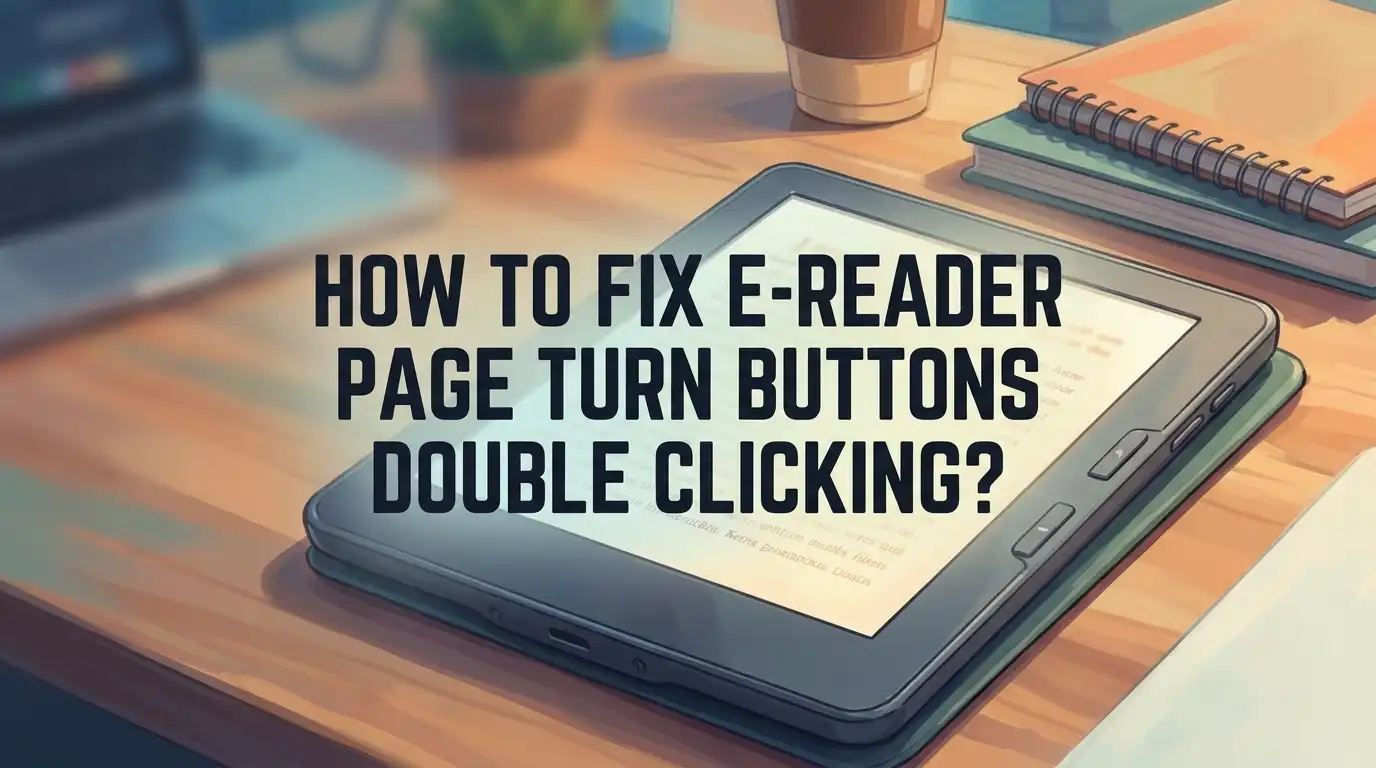
How To Fix E-Reader Page Turn Buttons Double Clicking?
Do your e-reader’s page turn buttons feel glitchy? You press once, but the page flips twice. Or worse, a menu pops open when you just wanted to read.
This is a common problem. Many e-reader owners face this exact issue. The good news? You can usually fix it yourself in just a few minutes.
Double clicking buttons often happen due to simple settings issues. Sometimes it’s a software glitch. Other times, it’s just a matter of adjusting your device’s sensitivity.
In a Nutshell
- Check your settings menu first. Most double click issues come from a simple setting, not a broken button. Look for “Page Turn” or “Page Refresh” options in your reading menu.
- Switch the mode. Change the setting from double click to single click. This one step solves the problem for most Kindle and Boox users.
- Boox owners need extra steps. Go to eink settings, then the preset mode gear icon. Find the fix under the “Others” section.
- Press buttons dead center. Off center presses often trigger menus instead of turning pages. This mimics a double click glitch.
- Lift your finger fully between taps. This matters if you use tap gestures too. A lingering touch can register as two clicks instead of one.
- Remember that newer models support tap anywhere page turns. Older devices rely only on physical buttons, so settings vary by model.
Why Page Turn Buttons Double-Click Instead of Single-Click
Your e-reader’s page turn buttons register double clicks for several mechanical and software reasons. Understanding what causes this problem helps you fix it faster.
Mechanical wear and tear is one common culprit. Physical buttons have tiny springs inside. Over time, these springs weaken. When you press the button once, the spring bounces back and forth. This bouncing creates multiple contact signals. Your device reads each bounce as a separate click.
Contact debris also causes double clicking. Dust, lint, or small particles get trapped under the button. These particles prevent the button from fully resetting after you press it. The button makes contact twice instead of once before settling into its resting position.
Software settings play a major role too. Many e-readers ship with double click settings enabled by default. This feature was designed for specific functions like opening menus or accessing bookmarks. When this setting stays active for page turning, you get unwanted double page flips.
Button sensitivity calibration affects how your device interprets button presses. If your e-reader’s button sensitivity is set too high, even a slight finger movement registers as multiple clicks. The device cannot distinguish between one firm press and two quick taps.
Accidental finger movement during pressing also triggers this issue. If your finger bounces or shifts slightly while pressing the button, the device registers it as a second click. This happens especially if you do not lift your finger completely between presses.
Timing settings in your device’s firmware matter as well. Your e-reader has a specific time window where it ignores repeated clicks. If this window is too short, legitimate button presses register as doubles. If it is too long, actual double clicks get treated as singles.
Knowing these causes helps you identify which fix applies to your specific situation.
Locating Page Turn Settings on Your E-Reader
Your e-reader’s settings menu holds the key to fixing double click issues. Most devices store page turn controls in a dedicated section. You need to find this area first.
Start by opening your device’s main menu. Look for options labeled “Reading Settings,” “Page Turn Options,” or “Button Settings.” The exact name varies by model. Tap or press the menu button to access these controls.
Once inside the settings area, search for page turn or page refresh controls. This section lets you switch between different clicking modes. You’ll typically see options for single click, double click, or tap anywhere turning. Select the mode that matches how you want to turn pages.
For Onyx Boox users, the process has extra steps. Access your eink settings first. Then select the preset mode using the gear icon. Navigate to the “Others” section where page turn settings live. This location differs from standard e-readers.
Check your device’s specific manual if you can’t locate these settings. Different manufacturers organize menus differently. Some hide button settings under “Advanced Options.” Others place them directly in the main reading menu.
After finding the right section, look for sensitivity or calibration options. These controls adjust how responsive your buttons are. Lower sensitivity settings can prevent accidental double clicks from light pressure.
Take time to explore your entire settings menu. Many e-readers offer multiple button customization options. You might find separate controls for left and right buttons. Some devices let you assign different functions to each button.
Write down where you found these settings. This helps if you need to adjust them again later. Your device’s settings won’t change on their own, so once you fix the issue, it should stay fixed. Most problems resolve after switching to single click mode and verifying your button settings match your preferences.
Step-by-Step: Switching from Double-Click to Single-Click Mode
Most e-readers let you change how your page turn buttons work. The process is straightforward once you find the right menu.
Start by opening your device’s main settings. Look for a section called “Reading Options,” “Page Turn Settings,” or “Button Controls.” Different brands use different names, so check your manual if you’re unsure. The settings menu is usually accessible from your home screen or by pressing a dedicated menu button.
Once you’re in the settings area, find the option that mentions page turning. You’ll see choices like “Single Click” or “Double Click.” Select the single click mode to stop the unwanted double registering. This change takes effect immediately on most devices.
For Onyx Boox owners, the steps are slightly different. Go to your eink settings first. Look for a preset mode with a gear icon. From there, navigate to the “Others” section where you’ll find page turn sensitivity controls. Adjust these settings to match single click behavior.
After making changes, test your buttons right away. Press the page forward button once and watch what happens. The page should turn smoothly without jumping ahead. If it still registers as a double click, go back to settings and try a different sensitivity level.
Some devices offer calibration options beyond just switching modes. These let you fine tune how quickly your device responds to button presses. Experiment with these settings if single click mode alone doesn’t solve your problem.
Write down your new settings in case you need to return to them later. Different reading apps might have their own page turn preferences too, so check those separately if your issue continues.
Device-Specific Fixes: Kindle, Onyx Boox, and Other Brands
Your e-reader’s page turn buttons work differently depending on the brand and model you own. Each device has its own settings system and button behavior. Understanding these differences helps you fix the double-click problem faster.
Kindle models have several options for page turning. Newer Kindles let you tap anywhere on the screen sides to turn pages instead of using physical buttons. Open your reading options menu and look for “Page Turn” settings. Switch from double-click mode to single-click if that option appears. Some Kindle generations also let you tap the back of the device to advance pages.
Onyx Boox devices require a different approach. Go to your settings menu and find the eink settings section. Look for a preset mode gear icon and tap it. Navigate to the “Others” section where page turn controls live. Here you can adjust button sensitivity and switch between click modes. Test your buttons immediately after making changes.
Other e-reader brands like Kobo and PocketBook have their own settings locations. Check your device’s main settings for a “Controls” or “Hardware” section. Look for button calibration or sensitivity options. Some devices let you disable double-click features entirely.
A practical tip: Before changing settings, write down your current configuration. This helps you return to original settings if needed. Different models store these settings in different places, so don’t assume one method works everywhere.
Press your buttons carefully during testing. Make sure your finger fully leaves the button between presses. Pressing off-center sometimes triggers menu opens instead of page turns. This common mistake feels like a device malfunction when it’s actually a pressing technique issue.
Check your device’s manual if you can’t find these settings. Manufacturer websites often have step-by-step guides for your specific model number.
Tips for Preventing Accidental Double Registration
Preventing accidental double registration starts with how you physically interact with your e-reader’s buttons. Your finger placement matters more than you might think. When you press a page turn button, make sure your finger lands directly on the center of the button, not on its edges or corners.
Press and release completely between each button tap. Many users accidentally trigger double clicks by holding their finger on the button too long or pressing it again before fully lifting off. Give yourself a half second pause between intentional page turns. This simple habit stops your device from misinterpreting a single action as two separate commands.
Keep your fingers dry when using physical buttons. Moisture on your fingertips can cause the button to register multiple times as you press and release. A quick wipe on your clothing prevents this common issue.
Avoid pressing buttons while your hand is moving or shaking. Stability matters. Rest your e-reader on a flat surface or hold it firmly with your non-pressing hand. This steadies the device and prevents accidental button bouncing that registers as double clicks.
Test your button sensitivity regularly to catch problems early. Press each button once slowly and watch the page response. If pages turn twice from a single press, you’ve caught the issue before it becomes frustrating during reading sessions.
Pay attention to your button pressing rhythm. Some users develop a habit of tapping buttons quickly in succession, which can feel like one action to them but registers as multiple clicks to the device. Slow down your pace intentionally.
Clean around your buttons occasionally. Dust or debris near the button edges can interfere with proper contact and registration. A soft, dry cloth works well for this maintenance task.
These prevention methods work best when combined with the device settings adjustments covered in previous sections.
Common Mistakes When Adjusting Button Settings
When adjusting button settings on your e-reader, several mistakes can prevent you from fixing the double-click problem. Understanding these errors helps you get better results.
The first mistake is pressing buttons slightly off center. Your device may have a specific activation zone on each button. If you press toward the edge instead of the middle, the button might trigger menu functions instead of page turns. This creates confusion about whether the setting change actually worked.
Another common error is not checking your device’s specific settings location. Each brand stores page turn options in different places. What works for a Kindle differs from Onyx Boox or Kobo. Searching the wrong menu wastes time and leaves the problem unsolved.
Many users also confuse the double-tap feature with an actual malfunction. Some e-readers support double-tapping on the screen to scroll through menus or the bookstore. This is intentional and separate from physical button double-clicking. Mixing up these features leads to unnecessary troubleshooting.
Failing to test immediately after changes is another mistake. You should press your buttons right after adjusting settings to confirm the fix worked. Waiting hours or days makes it harder to remember what you changed if problems persist.
Not keeping records of your original settings causes problems too. If the new configuration doesn’t work well, you won’t remember how to return to your previous setup. Write down your current settings before making any adjustments.
Finally, ignoring your device manual wastes valuable time. Your manual contains the exact menu path to button settings for your specific model. Checking it first prevents you from wandering through incorrect menu sections.
Avoiding these mistakes makes the adjustment process faster and more successful. Your e-reader’s page turn buttons should work smoothly once you navigate the right settings correctly.
Troubleshooting Persistent Button Issues
When your e-reader’s page turn buttons keep registering double clicks, the problem often stems from how your device interprets button presses. The issue isn’t always a hardware failure. Sometimes your settings simply need adjustment.
Start by accessing your reading options or settings menu. Look for a section labeled “Page Turn” or “Page Refresh.” This menu controls how your device responds to button presses.
Switch your setting from double-click mode to single-click mode. This simple change stops your device from expecting two rapid presses before turning a page. One press now equals one page turn.
For devices with multiple button sensitivity options, locate the calibration or sensitivity settings. These controls let you adjust how sensitive your buttons are to pressure. Sometimes lowering the sensitivity prevents accidental double registrations.
Test your buttons immediately after making changes. Press each button slowly and deliberately. Wait a full second between presses. This helps you confirm the fix actually worked.
If your buttons still register double clicks, check whether you’re pressing them slightly off center. Buttons pressed at the edges sometimes trigger unintended functions or menu opens instead of page turns. Practice pressing directly in the button’s center.
Some e-readers have different settings for different reading modes. Check if your double-click problem only happens in specific apps or during certain activities. Your device might need different settings for reading books versus browsing menus.
Verify that your fingers fully lift between each tap. Many users accidentally hold their fingers on buttons just long enough to trigger a second registration. This creates the double-click effect even when your device settings are correct.
If these steps don’t resolve the issue, your device manual contains model-specific guidance. Different brands hide their button settings in different locations. Your manual shows exactly where to find these controls for your particular e-reader.
Final Thoughts
Fixing double click page turn buttons does not need to be hard. Most e readers let you switch from double click mode to single click mode in the settings menu.
Take a few minutes to check your device’s reading options. You will likely find the fix waiting there already.
Remember that each brand handles this setting differently. Onyx Boox users need to check eink settings and the preset mode gear icon. Kindle owners should look under page turn or page refresh options.
Testing your buttons right after any change matters a lot. This simple step helps you confirm the problem is truly gone.
Do not confuse double tap features with actual malfunctions. Many readers mix these up and waste time trying to fix something that was never broken.
Newer e readers often support tap anywhere page turning. This means you can tap the sides, back, or top of your screen. Older models with only physical buttons may need extra attention to settings.
Button placement also plays a big role in accuracy. Pressing slightly off center can trigger a menu instead of turning the page. Take your time and press buttons in their exact center spot.
Your reading experience should feel smooth and simple. Nobody wants button problems interrupting a good book.
If basic settings changes do not solve your issue, check your device manual for model specific instructions. Every e reader brand organizes these settings a bit differently.
With patience and the right settings adjustments, you can enjoy uninterrupted reading again. Your pages will turn exactly when you want them to.
Small fixes like these make a big difference in daily use. Take the time now to get your settings right, and enjoy distraction free reading for good.
Frequently Asked Questions
Why does my e-reader think I’m pressing the page turn button twice?
Your device may have double-click mode enabled by default. This setting makes the button require two quick presses to turn a page. You can switch to single-click mode in your reading options or settings menu. The exact location varies by brand and model, so check your device manual for the precise path.
How do I know if it’s a real malfunction or just a settings issue?
Test your buttons carefully after adjusting your settings. Press each button slowly and deliberately. If the problem stops after you switch from double-click to single-click mode, it was a settings issue. If buttons still register double clicks after changing settings, you may have a hardware problem that needs professional repair.
Will switching to single-click mode affect other features?
Single-click mode only changes how your page turn buttons respond. It won’t impact tap-to-turn features on your screen or menu navigation. Some e-readers let you use different settings in different reading modes, so you can customize your experience further in your device settings.
What if my buttons open menus instead of turning pages?
You might be pressing the buttons slightly off-center. Check that you’re hitting the button directly in the middle. Also verify you’re using the correct buttons for page turning. Some devices have multiple buttons with different functions, so confirm your button locations in the manual.
Are there any quick fixes before I dig into settings?
Yes. Make sure your finger is completely lifted between presses. Wait a full second before pressing again. This prevents your device from registering accidental double clicks. If this simple habit helps, your issue may have been user error rather than a settings problem.

Hi, I’m Rue Hessel, the founder and voice behind TheGenTool. I’m a passionate tech enthusiast who loves exploring the latest gadgets, smart devices, and electronics that shape our everyday lives. Through my website, I share honest, hands-on reviews of trending Amazon products to help you make smarter and more confident buying decisions.