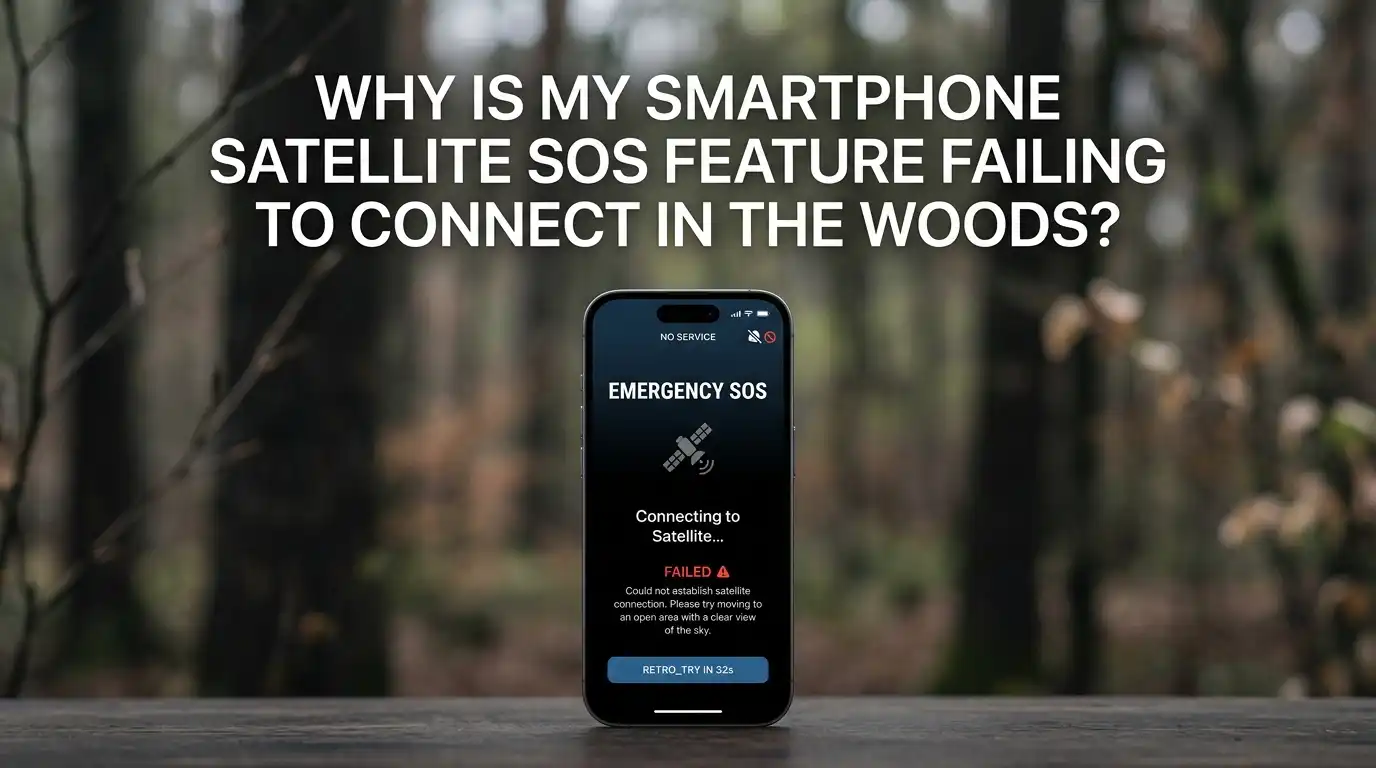
Why Is My Smartphone Satellite SOS Feature Failing To Connect In The Woods?
Picture this. You twist your ankle on a remote trail. Your cell bars vanished hours ago. You remember your phone has that life saving satellite SOS feature, so you tap it with shaking hands.
Then nothing happens. The screen tells you to step into the open, but a thick canopy of pines blocks every patch of sky you can see.
This scenario is more common than most hikers expect. Satellite SOS on phones like the iPhone 14 and newer, the Pixel 9 series, and the Galaxy S series sounds magical in commercials.
Key Takeaways
- Tree canopy is the number one enemy. Satellite signals are weak and need a clear line of sight to the sky. Even moderate leaf cover can block or scatter the connection, so moving to a clearing is almost always the first step.
- Your phone must be aimed correctly. Satellites move fast across the sky. The phone’s on screen pointer is not decoration. It tells you exactly where to hold the device so the antenna can lock on.
- Software, region, and SIM status matter. The feature only works in supported countries, on supported phone models, with updated software, and often with an active SIM installed. Skipping any one of these conditions blocks the service entirely.
- Weather, terrain, and body position add friction. Heavy rain, snow loaded branches, deep canyons, and even your own body blocking the antenna can stop a connection. Small position changes often solve big signal problems.
- A dedicated device is still the gold standard. Personal locator beacons and satellite messengers use stronger antennas and higher power. For serious backcountry travel, they remain the most reliable rescue tool.
- Practice before you need it. Both iPhone and Pixel offer a demo mode. Running the demo at home teaches your hands what to do during a real emergency.
How Satellite SOS Actually Works On Your Phone
Your phone is not talking to a normal cell tower. It is sending a tiny burst of data straight to a satellite hundreds of miles above the Earth. The antenna inside your phone is small, and the power it can push out is limited by battery and regulation.
To reach the satellite, the signal must pass through open air. Anything solid in the path, like leaves, branches, rocks, or roofs, weakens or scatters the signal. Compared to a personal locator beacon, your phone is whispering instead of shouting.
The satellites also move. Many are in low Earth orbit and cross the sky in minutes. Your phone must lock on to a moving target while you hold still and aim. That is why connecting in the woods is hard. You are aiming a flashlight beam at a passing airplane through a forest.
Why Tree Cover Blocks The Signal So Easily
Satellite radio waves at the frequencies phones use do not punch through dense vegetation well. Wet leaves are even worse than dry ones because water absorbs radio energy. A canopy that looks thin can still cut your signal in half.
Pine forests and tropical jungles are the toughest. Conifer needles, layered branches, and tall trunks create a tangled wall that bounces the signal in random directions. The phone may show it is searching for a satellite, but the reply never makes it back.
This is also why even dedicated devices like the inReach struggle under heavy cover. Phones, with their smaller antennas, struggle more. If your screen keeps cycling through search mode without success, the canopy above you is almost certainly the cause.
Step One: Move To The Most Open Sky You Can Find
The single most useful action is repositioning. Look for a meadow, a wide trail junction, a riverbed, a rock slab, or a recent burn area. Even a small gap in the canopy can be the difference between failure and success.
If you cannot walk far due to injury, scoot or crawl just a few feet to escape the shadow of the nearest tree. Sometimes moving three steps to the side opens up a usable patch of sky.
Pros of moving to open ground: It is free, immediate, and often solves the issue without any other adjustment. Cons: It may not be possible if you are injured, on a cliff, or in a deep canyon. In those cases, you must use the other techniques below to squeeze every bit of performance out of your phone.
Step Two: Use The On Screen Pointer Properly
Both iPhone and Pixel guide you with a moving arrow or animated graphic that shows where the satellite is. This is the single most ignored feature. People panic, hold the phone flat, and wonder why nothing connects.
Hold the phone like a flashlight, screen facing you, and slowly turn your whole body in the direction the arrow indicates. Keep the screen reasonably level so you can read it. The phone will tell you when you have locked on.
Pros of using the pointer: It removes the guesswork and dramatically increases your chance of a quick connection. Cons: It requires you to stay calm and follow instructions, which is hard during a real emergency. That is why practicing the demo mode before any trip is so valuable. Your muscle memory will take over when your nerves take charge.
Step Three: Check Your Phone Model, Region, And SIM
Satellite SOS only works on specific phones. For iPhone, that means iPhone 14 or later running a current iOS version. For Pixel, that means Pixel 9 or newer with up to date Android. Galaxy and some other brands now offer similar features through partners like Skylo.
The service is also region limited. If you are hiking in a country where the carrier or satellite provider has not enabled the service, your phone will refuse to connect, no matter how clear the sky is. Check the supported country list before your trip.
A working SIM is often required as well. Reports show that iPhone satellite SOS may show unavailable if no SIM is installed, even if your account is active. Always travel with the SIM seated and the phone fully booted.
Step Four: Update Software Before Every Trip
Satellite features rely on frequent backend updates. Apple, Google, and Samsung push fixes that improve antenna tuning, satellite handoff, and bug crashes. An outdated phone may fail to connect even with a perfect sky view.
Before heading into the woods, open settings, check for system updates, and install any pending carrier settings update. Do the same for the Messages and Emergency SOS app components.
Pros of updating: Better reliability, new satellite partners, and sometimes longer free service periods. Cons: Updates use battery, take time, and rarely can introduce new bugs of their own. The benefit far outweighs the risk, so always update at home on Wi Fi a few days before departure, not the morning you leave.
Step Five: Manage Battery And Temperature Carefully
A weak battery kills satellite SOS faster than almost anything else. Connecting can take several minutes, and sending a full message draws steady power. Cold weather makes lithium batteries deliver less current, so a phone that shows fifty percent at home may shut down at twenty percent on a frigid ridge.
Keep your phone warm inside an inner jacket pocket, close to your body. Carry a small power bank with a short cable. Turn on low power mode the moment you realize you may need satellite SOS, so you save energy for the connection attempt.
If your phone is overheating from sun exposure, shade it before trying again. Both extreme cold and extreme heat cause radios to throttle down, which weakens your signal at the worst possible moment.
Step Six: Remove Cases, Wet Gloves, And Body Blockage
Thick cases, especially metal or wallet style ones, can block or detune the antenna. Pop your phone out of the case during a satellite connection attempt. Hold it with bare or thin gloved hands so your skin and clothing do not absorb the signal.
Your own body is a wall of water. If you hold the phone close to your chest with the back of the phone facing you, you may be shielding the antenna from the satellite. Extend your arm and let the back of the phone face open sky.
Wet phones also struggle. Wipe condensation, snow, and rain off both sides before pointing. A dry, naked phone in your bare hand, aimed correctly, will outperform a cased phone tucked against your jacket every time.
Step Seven: Try Again, And Wait Between Passes
Satellites cross the sky on schedules. If you miss one pass, another is often only a few minutes away. Do not give up after a single failed attempt. Cancel the search, wait two or three minutes, then start again.
While waiting, move to a better spot, warm the phone, and read the on screen prompts carefully. Some users have reported success on the third or fourth try after no luck on the first two.
Pros of patient retries: Costs nothing and frequently works. Cons: Burns battery and time, which matters in a true emergency. Balance retries with movement. If three tries fail in one location, walk or crawl to a more open spot before trying again.
Step Eight: Use Find My, Messages, And Roadside Assistance Too
Satellite SOS is not the only satellite feature on modern phones. iPhone also offers Messages via satellite, Find My via satellite, and Roadside Assistance via satellite. Pixel offers messaging features too. These give you more ways to reach friends, family, or services without dialing emergency operators.
If your situation is serious but not life threatening, sending a message to a trusted contact may be the smartest move. They can call search and rescue on your behalf with your exact coordinates.
Pros: More flexible, less stressful, and sometimes faster than waiting for an emergency dispatcher to reply. Cons: Requires the recipient to act quickly and know what to do. Tell your contacts before the trip what to do if they get a satellite message from you, including which agency to call.
When To Rely On A Dedicated Satellite Device Instead
Phone based SOS is a fantastic safety net, but it is not the gold standard. Personal locator beacons and satellite messengers use larger antennas, higher transmit power, and dedicated satellite networks built for emergency signaling.
A personal locator beacon, once activated, broadcasts a strong signal that government rescue services receive directly. Satellite messengers let you send two way texts, share locations, and trigger SOS through a global network with stronger penetration through light tree cover.
Pros of dedicated devices: Far more reliable in dense forest, designed for harsh weather, and often water resistant. Cons: Extra cost, extra weight, and messengers usually require a subscription. For day hikes near roads, a phone may be enough. For multi day trips deep in the backcountry, a dedicated device is hard to beat.
Habits That Prevent Connection Failures Before They Happen
Prevention beats panic. Before every trip, run the satellite SOS demo on your phone. Both iPhone and Pixel offer a built in demo that walks you through aiming and connecting without contacting real emergency services.
Share your route and expected return time with someone at home. Carry a paper map, a whistle, and a small mirror for signaling. Pack a spare battery pack and keep your phone in airplane mode when not in use to extend battery life.
Learn the terrain. Study the map for clearings, ridgelines, and water features where you could move if you needed sky access. Knowing in advance where the open spots are can shave critical minutes off a real emergency. These small habits stack up into a much safer trip every time you head into the woods.
Frequently Asked Questions
Why does my satellite SOS say connected but my message will not send?
A connection sometimes drops mid send because the satellite moves out of view or branches sway into the line of sight. Stay still, keep aiming as the on screen pointer instructs, and let the message retry. If it fails, start a fresh attempt after the next satellite pass.
Does satellite SOS work at night?
Yes. Satellites do not care about daylight. The radio signals work the same after sunset, and you can connect in full darkness as long as you have a clear view of the sky and enough battery to power the screen and radio during the attempt.
Will satellite SOS work if my phone has no service plan?
In most cases, satellite emergency features work even without an active cellular plan, because they are tied to safety regulations. However, a SIM card may still need to be installed in some phones, and certain countries restrict the service to active subscribers.
How long does it take to connect to a satellite in the woods?
In an open meadow, connection often happens in fifteen to thirty seconds. Under partial tree cover, expect one to three minutes. Under heavy canopy, it can take five minutes or more, and may fail entirely. Move to clearer ground if connection takes longer than two minutes.
Can I test satellite SOS without calling emergency services?
Yes. Both iPhone and Pixel include a demo mode in the Emergency SOS settings. The demo simulates the full experience, including aiming the phone, without contacting any rescue agency. Run the demo at home and again at the trailhead so the steps feel natural.
Is satellite SOS free?
For most current phones, satellite SOS is included free for a period after activation, often two years. Apple and Google have extended these free periods multiple times. Check your phone’s settings for your current expiration date so you are never surprised in the field.

Hi, I’m Rue Hessel, the founder and voice behind TheGenTool. I’m a passionate tech enthusiast who loves exploring the latest gadgets, smart devices, and electronics that shape our everyday lives. Through my website, I share honest, hands-on reviews of trending Amazon products to help you make smarter and more confident buying decisions.