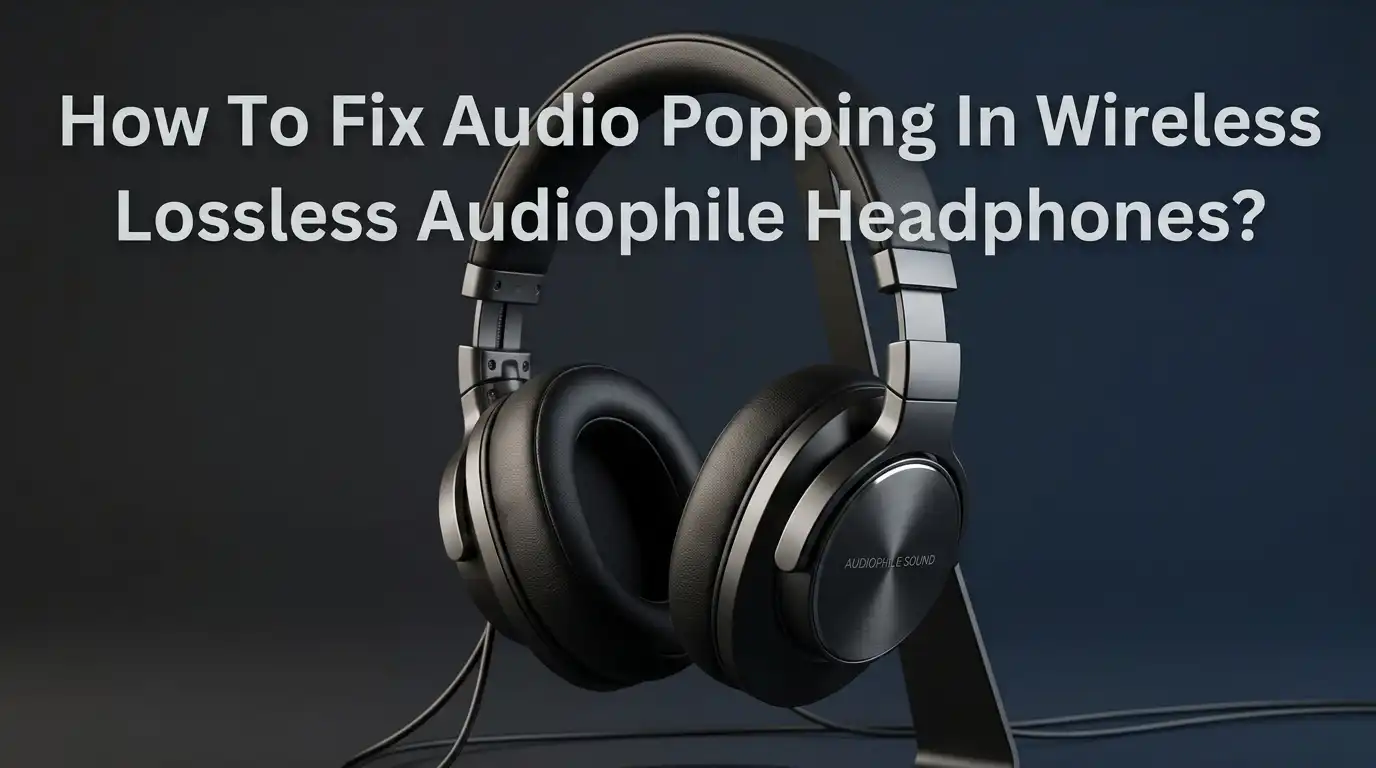
How To Fix Audio Popping In Wireless Lossless Audiophile Headphones?
You just invested in a pair of premium wireless lossless audiophile headphones. The sound should be pure, rich, and distortion free. But instead, you hear an annoying pop, crackle, or glitch every few seconds.
It kills the listening experience and makes you question the entire purchase. You are not alone in this. Thousands of audiophile headphone owners deal with this exact problem, especially those using high bitrate codecs like LDAC, aptX HD, and aptX Adaptive.
The good news is that most audio popping issues have clear, fixable causes. This post will walk you through every practical solution, from quick software tweaks to deeper hardware adjustments.
Key Takeaways
- Bluetooth interference is the most common cause of audio popping in wireless lossless headphones. Devices that operate on the 2.4 GHz band, like Wi Fi routers and microwaves, directly compete with Bluetooth signals and create audible glitches in your audio stream.
- High bitrate lossless codecs are more prone to popping than standard codecs. LDAC at 990 kbps and aptX Adaptive at its highest quality settings push the limits of Bluetooth bandwidth. If your phone or source device cannot maintain a stable data stream, you will hear pops and dropouts.
- Firmware updates fix many popping issues. Headphone manufacturers regularly release firmware patches that address codec stability, connection drops, and audio artifacts. Always check your headphone companion app for available updates before trying anything else.
- Your source device matters just as much as the headphones. An older phone with a weak Bluetooth antenna or outdated Bluetooth version will struggle to maintain a clean lossless connection. Make sure your phone, computer, or DAP supports the same codec version your headphones use.
- Software settings on Windows, macOS, and Android can introduce popping. Exclusive mode, audio enhancements, incorrect sample rates, and power saving features are all known culprits. A few setting changes can solve the problem instantly.
- Physical distance and obstructions reduce signal quality fast. Even a wall between you and your source device can cause enough signal loss to produce audible pops during lossless playback. Keeping a clear line of sight helps maintain a stable stream.
Understanding Why Wireless Lossless Audio Pops And Crackles
Audio popping in wireless lossless headphones happens because of data transmission problems between your source device and the headphones. Lossless codecs send far more data per second than standard Bluetooth audio. LDAC at its highest quality pushes up to 990 kbps, while aptX Lossless can reach 1200 kbps or more. This leaves almost no room for error.
When even a small packet of audio data gets lost or arrives late, the headphone processor has a gap in the stream. That gap becomes an audible pop or crackle. Standard codecs like SBC or AAC send less data and can recover from small losses more easily. Lossless codecs cannot hide these losses without affecting sound quality.
The problem is not a defect in most cases. It is a limitation of Bluetooth bandwidth under real world conditions. Understanding this helps you target the right fix instead of wasting time.
Pros of lossless codecs: Superior sound detail, wider dynamic range, and studio grade clarity.
Cons of lossless codecs: Higher sensitivity to interference, greater battery drain, and increased likelihood of audio artifacts.
Check Your Bluetooth Codec Settings First
The first thing you should do is verify which codec your headphones and source device are actually using. Many people assume they are using LDAC or aptX HD, but the devices may have defaulted to a lower codec after a reconnection or update.
On Android, go to Settings, then Connected Devices, then tap the gear icon next to your headphones. The active codec should appear there. On some phones, you need to enable Developer Options to see this information. You can do this by tapping your build number seven times in the About Phone section.
Once in Developer Options, scroll to the Bluetooth audio codec section. You will see options like SBC, AAC, LDAC, aptX HD, and aptX Adaptive. If LDAC is active at 990 kbps and you experience popping, try switching it to 660 kbps or 330 kbps. This reduces data throughput and often eliminates the popping entirely.
Pros: Quick fix, no cost, preserves high quality audio.
Cons: Slightly lower bitrate means a minor reduction in audio resolution.
Reduce Wi Fi And Bluetooth Interference
Bluetooth and Wi Fi both operate on the 2.4 GHz frequency band. This shared spectrum causes direct competition for airtime. If you are sitting next to a Wi Fi router while streaming lossless audio, the signals can collide and cause popping, crackling, or brief dropouts.
The fix is straightforward. Switch your Wi Fi router to the 5 GHz band if your router supports dual band. This frees up the 2.4 GHz band for your Bluetooth headphones exclusively. You can do this in your router’s admin panel, usually accessible at 192.168.1.1 in a browser.
Move away from microwaves, baby monitors, wireless speakers, and other 2.4 GHz devices while listening. Even USB 3.0 devices can emit electromagnetic interference that disrupts Bluetooth signals. Keep your source device within three to five feet with a clear line of sight for the best results.
Pros: Dramatically improves connection stability at no cost.
Cons: Requires access to router settings and may need you to change your listening location.
Update Headphone Firmware And Source Device Software
Outdated firmware is a surprisingly common cause of audio popping. Headphone manufacturers release regular firmware updates that fix codec compatibility issues, improve Bluetooth stability, and patch known audio artifacts. A single update can solve a problem that has been bothering you for months.
Check your headphone companion app for firmware updates. Brands like Sony, Sennheiser, Bowers and Wilkins, and Technics all have dedicated apps that notify you of available updates. Install them with the headphones fully charged and close to your phone.
Also update your source device operating system. Android updates, Windows updates, and macOS updates frequently include Bluetooth stack improvements. An outdated Bluetooth driver on your laptop can cause popping even with perfectly functioning headphones.
Pros: Fixes root cause issues directly from the manufacturer.
Cons: Firmware updates can sometimes introduce new bugs, so check user forums before updating.
Adjust Audio Format And Sample Rate On Your Computer
If you use your wireless lossless headphones with a Windows PC or Mac, the default audio format setting can cause popping. Windows may output audio at a sample rate or bit depth that does not match what your headphones expect, and this mismatch creates audible artifacts.
On Windows, right click the speaker icon in the taskbar and open Sound Settings. Click on your headphone device, then go to Properties and Advanced. Try changing the default format to 16 bit, 44100 Hz or 24 bit, 48000 Hz. Test each option and listen for the popping to stop.
On macOS, open Audio MIDI Setup from the Utilities folder. Select your Bluetooth headphones in the sidebar and adjust the format to match a standard rate. Avoid setting the sample rate higher than what your headphones natively support, as this forces resampling and often creates pops.
Pros: Directly addresses format mismatch issues.
Cons: Requires some technical knowledge of audio settings.
Disable Audio Enhancements And Exclusive Mode
Windows includes several audio enhancement features that can conflict with wireless headphone playback. Spatial sound, loudness equalization, and bass boost all process the audio signal in real time. This processing can cause timing issues that result in pops and crackles.
Go to Settings, then System, then Sound. Select your headphone device and click on Audio Enhancements. Turn off all enhancements and test your audio. Many users report that this single change fixes their popping problem immediately.
Also disable Exclusive Mode. This feature lets one application take full control of your audio output. Open the Sound Control Panel, right click your headphones, choose Properties, then go to the Advanced tab. Uncheck “Allow applications to take exclusive control of this device.” This prevents apps from fighting over the audio driver and reduces glitches.
Pros: Simple toggle fixes that take seconds to apply.
Cons: Disabling enhancements removes features some users may enjoy like spatial audio.
Optimize Your Source Device Power Settings
Your computer or phone may be throttling its Bluetooth performance to save battery. On laptops running on battery power, the operating system reduces processor speed and limits background processes. This includes the Bluetooth radio, which needs consistent power to maintain a stable lossless stream.
On Windows, open Power and Sleep Settings. Click Additional Power Settings, then Change Plan Settings for your current power plan. Select Change Advanced Power Settings.
Find Processor Power Management and set the Minimum Processor State to 100 percent. Also look for Wireless Adapter Settings and set the power saving mode to Maximum Performance.
On Android, some phones have a battery optimization feature that restricts Bluetooth performance. Go to Settings, then Battery, then Battery Optimization. Find your music player app and set it to “Not Optimized.” This ensures the app keeps a steady data stream to your headphones.
Pros: Prevents the system from starving the Bluetooth connection of resources.
Cons: Higher power consumption and shorter battery life.
Reset And Re Pair Your Headphones
Sometimes the Bluetooth pairing profile between your headphones and source device becomes corrupted. Cached connection data can contain outdated codec preferences or flawed connection parameters. A full reset and re pair clears all of this and gives you a clean start.
First, remove your headphones from the Bluetooth devices list on your phone or computer. On most headphones, you can do a factory reset by holding the power button for 10 to 15 seconds until the LED flashes a specific pattern. Check your headphone manual for the exact procedure.
After the reset, restart your source device. Then put your headphones back into pairing mode and connect them fresh. This forces both devices to negotiate the best available codec and connection settings from scratch. Many stubborn popping issues disappear after this simple process.
Pros: Clears corrupted data and restores optimal connection settings.
Cons: You lose saved EQ presets and custom settings on the headphones.
Move Closer And Remove Physical Obstructions
Lossless audio codecs demand a strong and consistent Bluetooth signal to transmit all that data without errors. Walls, floors, furniture, and even your own body can absorb or reflect Bluetooth signals. What works fine for standard Bluetooth audio can fall apart under lossless streaming.
Keep your source device on the same side of your body as the headphone with the primary Bluetooth receiver. Most headphones receive the signal on the left or right ear cup, and your head can block the signal if the phone is on the opposite side.
Stay within 10 feet of your source device for the most reliable lossless connection. Concrete and brick walls cause the most signal loss. Glass and wood are less problematic but still reduce signal strength. If you must leave the room, consider switching to a lower bitrate codec temporarily.
Pros: Immediate improvement with zero technical changes.
Cons: Limits your freedom of movement while listening.
Check For App Specific Audio Conflicts
Certain music apps and streaming services can cause audio popping on their own. Apps that use their own audio processing engine sometimes conflict with the system Bluetooth audio pipeline. Spotify, Tidal, Apple Music, and other players each handle audio output differently.
Try switching to a different music app to see if the popping stops. If it does, the issue is with the original app’s audio settings. Look for options like “hardware acceleration,” “direct sound output,” or “exclusive output mode” within the app and disable them.
On Android, some apps force resampling of audio to match the system output rate. This extra conversion step can introduce artifacts. Check if your music app has a setting to output audio at its native sample rate without resampling. Matching the source file rate to the output rate removes one potential cause of popping.
Pros: Isolates app level issues without changing system settings.
Cons: May require switching away from your preferred music app.
Consider Bluetooth Version Compatibility
Not all Bluetooth versions perform equally with lossless codecs. Bluetooth 5.0 and above offer greater bandwidth, lower latency, and better error correction compared to older versions. If your source device runs Bluetooth 4.2 or lower, it may struggle to maintain a stable lossless connection.
Check your phone or computer specifications to confirm the Bluetooth version. If you are using a Bluetooth 5.2 or 5.3 device paired with headphones that also support these versions, you get the best possible connection stability. Mixing old and new Bluetooth versions forces both devices to fall back to the lower standard.
If your source device has an older Bluetooth version, you can use an external Bluetooth transmitter that supports Bluetooth 5.2 or higher. These plug into the headphone jack or USB port and provide a stronger, more capable wireless signal for your headphones.
Pros: Addresses a fundamental hardware limitation.
Cons: Requires purchasing additional hardware if your device is outdated.
When To Contact The Manufacturer Or Seek A Replacement
If you have tried every solution above and the popping persists, the issue may be a hardware defect in the headphones themselves. A faulty Bluetooth antenna, damaged driver, or defective DAC chip inside the headphones can cause persistent audio artifacts that no software fix will resolve.
Check if your headphones are still under warranty. Most audiophile headphones come with a one to two year warranty that covers manufacturing defects. Contact the manufacturer’s support team and describe the issue in detail. Mention the troubleshooting steps you have already completed, as this speeds up the support process.
Before sending them in, test the headphones with multiple source devices and in multiple locations. If the popping happens everywhere with every device, a hardware defect is the most likely explanation. Document everything for your warranty claim so you can get a repair or replacement as quickly as possible.
Pros: Resolves issues that no user side fix can address.
Cons: May involve shipping time, temporary loss of your headphones, or cost if out of warranty.
Frequently Asked Questions
Why do my wireless headphones pop only with lossless codecs and not with standard Bluetooth?
Lossless codecs like LDAC and aptX HD transmit significantly more data per second than standard codecs like SBC or AAC. This higher data rate leaves less room for error correction. Any small interruption in the Bluetooth signal creates a gap that the headphones cannot fill, and you hear it as a pop. Standard codecs use compression and error concealment that masks these small losses.
Can a phone case cause audio popping in Bluetooth headphones?
Yes, it can. Some phone cases, especially those with metal plates or magnetic mounts, can partially block or weaken the Bluetooth signal. If you notice popping that seems random, try removing your phone case and testing the connection. Cases with thick materials or built in magnets are the most common culprits.
Is it better to use 660 kbps LDAC instead of 990 kbps to avoid popping?
For most real world listening situations, 660 kbps LDAC provides an excellent balance between audio quality and connection stability. The difference between 660 and 990 kbps is subtle and often inaudible outside of a quiet, controlled environment. Dropping to 660 kbps dramatically reduces the chance of pops and dropouts while still delivering high quality sound.
Do firmware updates always fix audio popping issues?
Not always, but they are one of the most effective solutions. Manufacturers specifically address codec stability and Bluetooth connectivity in firmware patches. However, some updates can introduce new issues. It is smart to check online forums and user reviews for your specific headphone model before installing an update to see if others have had positive results.
Will a Bluetooth transmitter improve audio quality on an older laptop?
A high quality external Bluetooth transmitter with support for Bluetooth 5.2 or higher and your preferred codec can significantly improve connection stability and reduce popping. Older laptops often have Bluetooth 4.0 or 4.2 radios with limited bandwidth. An external transmitter bypasses this limitation and provides a stronger, more reliable signal for lossless audio streaming.

Hi, I’m Rue Hessel, the founder and voice behind TheGenTool. I’m a passionate tech enthusiast who loves exploring the latest gadgets, smart devices, and electronics that shape our everyday lives. Through my website, I share honest, hands-on reviews of trending Amazon products to help you make smarter and more confident buying decisions.