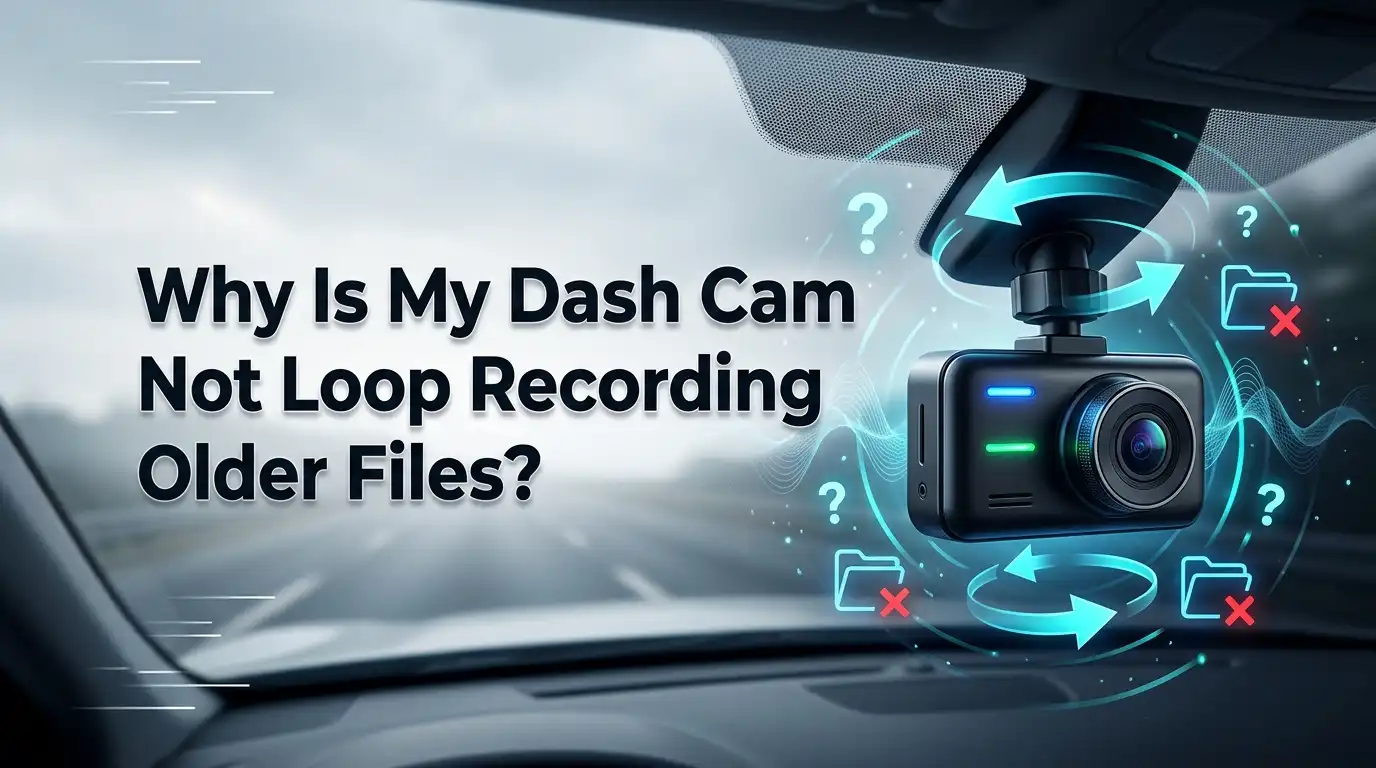
Why Is My Dash Cam Not Loop Recording Older Files?
Your dash cam should record forever without you lifting a finger. It writes new clips over the oldest ones, day after day. But sometimes that smooth cycle breaks.
The screen flashes a “card full” message. New trips vanish. Old footage refuses to budge. It feels confusing, and a little scary when you need proof of an incident.
The good news is simple. Most loop recording problems come from small settings or a tired SD card. You can fix almost all of them at home in minutes. This guide walks you through every cause and every solution, one clear step at a time. Let us get your camera looping again.
Key Takeaways
- Loop recording must be turned on. Many cameras ship with it off or reset it after a firmware update. Check the menu first. This single setting fixes a huge number of cases.
- Locked or protected files cannot be overwritten. Your G sensor saves event clips into a protected folder. Too many locked files fill the card and stop the loop. Lower the G sensor sensitivity and clear that folder.
- A wrong or full file system blocks overwriting. Cards over 32GB sometimes use exFAT when your camera wants FAT32. Always format inside the camera, not on a computer.
- The SD card itself wears out. Dash cams write data nonstop, so cards degrade fast. Most cards last 1 to 3 years, and a worn card breaks the loop.
- The lock switch on the adapter matters. A flipped write protect tab makes the card read only. Slide it back up to the unlocked side.
- Firmware bugs and dirty contacts cause random failures. Update your firmware and reseat the card to clear odd glitches.
What Loop Recording Actually Does
Loop recording is the heart of every modern dash cam. The camera splits your drive into short clips, usually one, three, or five minutes each.
It saves them one after another on the SD card. When the card runs out of space, the camera deletes the oldest clip and writes a fresh one in its place. This cycle never stops on its own.
This design means your card never truly fills up under normal use. You always have recent footage ready. The system only breaks when something blocks the camera from deleting old files.
That block is the real problem. Understanding this helps you spot the cause fast. Almost every fix below removes one specific block from this simple cycle.
Reason 1: Loop Recording Is Switched Off
This is the most common cause, and the easiest to miss. Many dash cams let you turn loop recording on or off in the menu. When it is off, the camera records until the card is full, then simply stops. It never deletes anything. You get a “card full” warning and no new footage.
Go into your camera settings and find the Loop Recording or Cycle Recording option. Set it to a clip length like three minutes or five minutes. Avoid the “Off” or “Max” setting, since some cameras treat “Max” as no looping.
After you change this, the camera should start overwriting old clips again. Firmware updates and factory resets often flip this setting back to off, so check it after any update.
Pros: This fix takes ten seconds and needs no tools. Cons: It does nothing if the real cause is locked files or a bad card, so test the camera after.
Reason 2: Locked Or Protected Files Are Hogging Space
Your dash cam has a G sensor. It detects bumps, hard braking, and crashes. When it feels a jolt, it locks the current clip and moves it into a protected “Event” folder.
Loop recording cannot delete locked files. That is the point. They keep your crash proof safe. But over time these locked clips pile up.
Rough roads, potholes, and speed bumps trigger the lock again and again. Soon the protected folder swallows most of your card. The loop has nowhere to write, so it stalls. Open your camera or app and look at the locked or event folder.
You will likely find dozens of files you never needed. Delete the ones you do not want to keep. Save any genuine incident clips to your phone or computer first. This frees space and restores the loop.
Reason 3: The G Sensor Sensitivity Is Too High
If locked files keep coming back after you clear them, the G sensor is the culprit. A high sensitivity setting locks a clip at the smallest shake. Normal driving on bumpy streets then creates a flood of protected files. Each one steals space the loop needs.
Open your settings and find G Sensor or Collision Detection. Lower it from High to Medium or Low. Some drivers turn it off completely during the day and rely on manual locking instead.
A lower setting still catches real crashes, which involve strong forces, while ignoring tiny bumps. Test it for a week and check how many files lock.
Pros: This stops the problem at the source and keeps your card mostly free for looping. Cons: Set it too low and a minor collision might not auto save, so find a balance that fits your roads.
Reason 4: The SD Card File System Is Wrong
Dash cams are picky about file systems. Most older and many current models want FAT32. Cards larger than 32GB often arrive formatted as exFAT from the factory.
When the camera meets a file system it does not fully support, it may write clips but fail to delete the old ones. The loop breaks quietly.
The cleanest fix is to format the card inside the camera itself. The camera then writes the exact file system and folder structure it needs for looping.
Never rely only on a Windows or Mac format for the final step, since computers may pick a system your camera dislikes. If your camera supports exFAT, the in camera format handles it correctly. This one action solves a surprising number of stubborn cases.
Reason 5: The Card Needs A Fresh Format
Even a healthy card collects clutter over months of recording. Tiny file errors, broken clips, and leftover fragments build up. These can confuse the camera and stop it from overwriting cleanly. Regular formatting wipes this mess and resets the card to a clean state.
Back up any clips you want to keep. Then open your camera menu and choose Format. The camera erases everything and rebuilds its folders.
Many makers suggest formatting every two to four weeks for steady performance. Set a phone reminder so you never forget. If the in camera format fails, try the official SD Card Formatter tool on a computer with a full overwrite, then format again in the camera.
Pros: Formatting fixes most card based glitches and keeps loop recording smooth. Cons: It deletes all footage, so you must save important clips first, and it does not repair a card that is physically worn out.
Reason 6: The Write Protect Lock Switch Is On
This one trips up many people who use a microSD card inside an SD adapter. Full size SD cards and adapters have a small lock switch on the left edge.
When that switch slides down, the card becomes read only. The camera can read clips but cannot write or delete them. Loop recording fails completely.
Take the card out. If you use an adapter, look at the tiny switch on the side. Slide it up toward the contacts, into the unlocked position. Then put the card back.
Some adapters have loose switches that slip during handling, so this happens more than you would think. A microSD card alone has no switch, so this only affects adapter setups. It is a thirty second check that saves a lot of stress.
Reason 7: The SD Card Is Worn Out
SD cards do not last forever. Dash cams write data almost constantly while you drive. This nonstop writing wears down the memory cells faster than in a phone or camera.
A standard card may last only six to twelve months under heavy daily use. High endurance cards stretch that to two or three years.
A worn card shows clear signs. It drops clips, throws random errors, refuses to format, or stops overwriting old files.
If formatting and settings changes do not fix the loop, the card is likely dying. Replace it with a fresh high endurance card rated for dash cams. Choose a Class 10, U3, V30 card, since these handle the steady write speed that looping needs.
Pros: A new high endurance card restores reliable looping for years. Cons: Quality cards cost a bit more, and you lose any unsaved footage on the old one.
Reason 8: The Card Capacity Or Speed Is Too Low
Sometimes the loop struggles because the card cannot keep up, not because it is broken. A slow card cannot write high resolution video fast enough. The camera then drops frames, corrupts clips, and may fail to overwrite cleanly. 4K and dual channel cameras demand fast cards.
Check your camera manual for the maximum supported capacity and the recommended speed class. Use a card rated Class 10 with U3 and V30 marks for 4K recording. A card too large for the camera may not be recognized at all.
A card too slow creates write errors that break the loop. Match the card to your camera, and pick at least 64GB or 128GB for 4K or dual lens models so the loop has room to breathe.
Reason 9: Outdated Firmware Has A Bug
Firmware is the software inside your camera. Early versions sometimes ship with bugs that affect file handling and loop recording. The maker fixes these in later updates. If your loop fails for no clear reason, old firmware could be the hidden cause.
Visit your camera maker’s official website and find the support or download page for your exact model. Download the matching firmware file and follow the update steps carefully. Usually you copy the file to a freshly formatted card, insert it, and power on.
Do not unplug power during the update. A failed update can brick the camera, so keep the engine running or use a stable supply. After updating, format the card and recheck your loop and G sensor settings.
Pros: Updates fix known bugs and often add features. Cons: A botched update can damage the camera, and settings may reset, so note them down first.
Reason 10: Dirty Or Loose Card Contacts
Vibration and heat are hard on small parts. Over time the SD card can shift slightly in its slot, or dust can settle on the gold contacts.
The camera then reads the card poorly. It may record in bursts, freeze, or fail to overwrite old clips. A weak connection breaks the steady write the loop needs.
Power off the camera. Gently remove the card. Wipe the gold contacts with a clean, dry cloth. Blow any dust out of the slot. Push the card back in until it clicks firmly.
Make sure it seats fully and does not wiggle. This simple cleaning fixes many intermittent faults that look like serious failures. If the problem returns fast, the slot or card may be worn.
Reason 11: A Factory Reset Clears Hidden Glitches
When you have tried the obvious fixes and the loop still stalls, a full reset often helps. Software settings can tangle in ways that are hard to trace.
A factory reset wipes every custom setting and returns the camera to its starting state. This clears odd combinations that block loop recording.
Find Default Settings, Factory Reset, or System Reset in your menu. Confirm the reset. The camera reboots fresh. Now turn loop recording back on, set your G sensor to Low or Medium, and format the card inside the camera.
Reconfigure each setting one at a time so you know everything is correct. Then take a short test drive and check that new clips appear and old ones get replaced.
Pros: A reset clears stubborn software gremlins fast. Cons: You lose all your custom settings and must enter the date, time, and preferences again.
Reason 12: When To Replace The Whole Dash Cam
If you have formatted the card, swapped in a fresh high endurance card, updated firmware, and reset the camera, yet the loop still fails, the camera itself may be the problem.
Internal parts wear out, especially in cameras that sit in hot, sunbaked cars all day. A failing card reader or controller inside the unit cannot be fixed at home.
Watch for repeated freezing, constant reboots, or failure even with a brand new card. These signs point to a hardware fault inside the camera, not the card.
Contact the maker first, since many cameras carry a one or two year warranty. A warranty claim may get you a free replacement. If the camera is old and out of warranty, a new model often costs less than repair and gives you better features.
Simple Habits That Keep Loop Recording Healthy
A little routine care prevents most loop failures before they start. Format your card inside the camera every two to four weeks. This keeps the file structure clean and the loop smooth. Clear out the locked event folder when it grows, and save real incident clips elsewhere.
Keep your G sensor on a Low or Medium setting so it does not lock junk clips on every bump. Replace your SD card every year or two, even if it still seems fine, since worn cards fail without warning.
Buy a high endurance card built for dash cams, not a cheap generic one. Update firmware when your maker releases a fix. These small steps cost almost nothing and keep your footage rolling when you need it most.
Frequently Asked Questions
Why does my dash cam say card full when loop recording is on?
The card is full of locked or protected files that the loop cannot delete. Your G sensor saved too many event clips. Clear the locked folder, lower the G sensor sensitivity, and format the card inside the camera. The loop should then overwrite old footage again normally.
How often should I format my dash cam SD card?
Format the card every two to four weeks for steady performance. Daily drivers benefit from formatting more often. Always format inside the camera so it writes the correct file system. Remember to save any clips you want to keep first, since formatting erases everything on the card.
Will formatting my SD card delete my saved crash footage?
Yes. Formatting erases every file on the card, including locked event clips. Always back up important incident footage to your phone or computer before you format. Once you have saved what matters, formatting is safe and helps your loop recording work smoothly again.
How long does a dash cam SD card last?
A standard card often lasts six to twelve months under heavy daily use. High endurance cards built for dash cams last two to three years. The constant writing wears cards faster than in phones. Replace yours when you see dropped clips, errors, or failed formats.
Can the wrong SD card stop loop recording?
Yes. A card that is too slow, too large, or wrong for your model can break the loop. Use a Class 10, U3, V30 card matched to your camera’s supported capacity. For 4K or dual lens cameras, choose a fast high endurance card of 64GB or more.
Why does my dash cam keep locking so many files?
The G sensor sensitivity is set too high. It locks a clip at every small bump, pothole, or speed bump. Lower the setting to Medium or Low in your menu. The camera will still catch real crashes, which create strong forces, while ignoring minor road shakes.

Hi, I’m Rue Hessel, the founder and voice behind TheGenTool. I’m a passionate tech enthusiast who loves exploring the latest gadgets, smart devices, and electronics that shape our everyday lives. Through my website, I share honest, hands-on reviews of trending Amazon products to help you make smarter and more confident buying decisions.