How To Fix A Mesh Wi-Fi System Flashing Red Lights?
Your mesh Wi-Fi system promised smooth internet in every room. Then one morning you see a red light blinking back at you. The video freezes. The phone drops offline. Panic sets in. Take a breath.
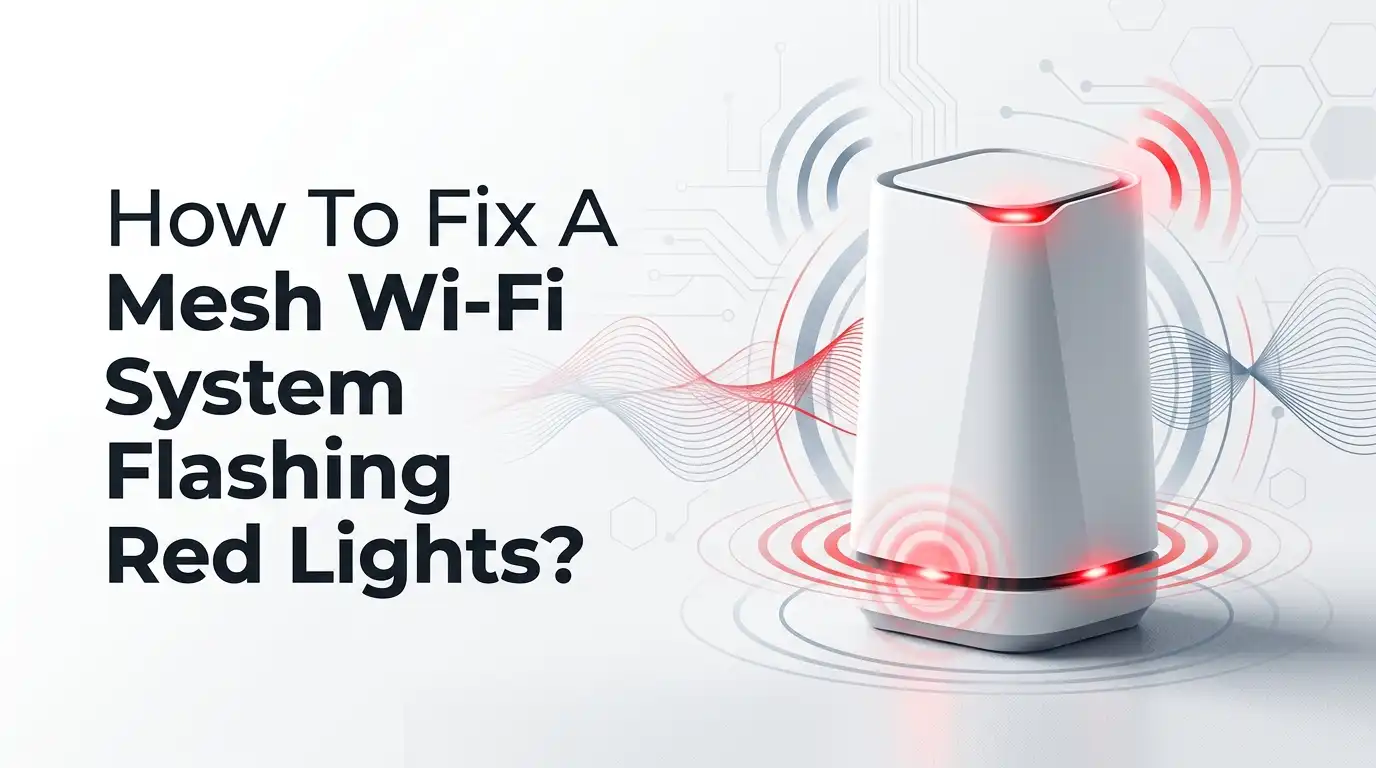
A red light is not the end of your network. It is just your system asking for help. A flashing red light usually means your mesh unit lost its internet connection or lost contact with the main node.
The good news is that most red light problems take only a few minutes to fix at home. You rarely need a technician.
Key Takeaways
- A red light almost always points to a lost internet signal or a broken link between your nodes. The main unit and satellite units use different red patterns, so check which device is flashing.
- Power cycling is your strongest first move. Turn off the modem and all mesh units, then restart them in the right order. This single step fixes most red light cases.
- Loose or damaged cables cause more red lights than people expect. Always check the Ethernet cable between your modem and main mesh unit before anything else.
- An internet outage from your provider can trigger a red light even when your gear works fine. Call your provider or check their app before you reset anything.
- Bad node placement breaks the wireless backhaul and turns satellites red. Keep each unit within a reasonable distance of the next one.
- A factory reset is your last resort, not your first. It erases all settings, so try the gentle fixes first and save the reset for stubborn problems.
What Does A Red Light On Your Mesh Wi-Fi Mean?
A red light is your system’s warning signal. It tells you that something stopped working in the connection chain. The exact meaning depends on which unit shows the color.
On the main unit, a solid or flashing red light usually means no internet from your provider. On a satellite unit, a flashing red light often means the node cannot reach the main unit.
Different brands use slightly different patterns. Google Nest shows solid red for a critical failure and fast red pulses for a serious error. eero blinks red when it loses connectivity or reboots itself.
TP-Link Deco shows solid red on the main unit and blinking red on remote units. Knowing your brand’s code helps you pick the right fix fast and avoid wasted effort.
Check For An Internet Outage From Your Provider First
Before you touch a single cable, rule out the simplest cause. Your internet provider might be down in your area. When the provider drops the signal, your main mesh unit turns red even though your hardware is perfect. Resetting your gear will not help in this case.
Check the outage status on your provider’s app or website using your phone’s mobile data. You can also call their support line for a recorded outage update. Ask a neighbor on the same provider if their internet works too. If the whole street is offline, the problem sits with the provider, not you.
Pros: This check takes two minutes and saves you from pointless resets. Cons: You cannot fix a provider outage yourself. You must wait for them to restore service, which can take hours.
Power Cycle Your Modem And Mesh System The Right Way
Power cycling clears stale data and refreshes your connection. This single step fixes the majority of red light problems. The order matters more than people think, so follow it closely.
First, unplug your modem and every mesh unit from power. Wait a full 60 seconds. This pause clears old network leases that cause conflicts.
Next, plug in the modem alone and wait until its lights settle, usually two minutes. Then power on your main mesh unit and let it fully boot. Finally, turn on each satellite unit one at a time.
This staggered restart lets each device find the one before it in the chain. Rushing the order is the most common mistake.
Pros: It is free, fast, and fixes most cases without losing settings. Cons: You lose internet for a few minutes, and the fix may not last if a deeper problem exists.
Inspect All Cables And Connections Carefully
Cables fail more often than people realize. A loose or damaged Ethernet cable between your modem and main mesh unit is a top cause of red lights. A cable can look fine yet still have a broken wire inside.
Unplug the Ethernet cable from both the modem and the main mesh unit. Check the connector tips for bent pins or dust. Push the cable back in until you hear a click. Make sure it sits in the correct WAN or internet port, not a regular LAN port. Also check the power adapter for a snug fit.
If you own a spare cable, swap it in to test. A cheap cable swap often solves a problem that hours of resets cannot.
Pros: Cable checks are cheap and quick. Cons: You may need to buy a new cable, and a hidden break is hard to spot by eye alone.
Verify The Main Node Versus The Satellite Node Problem
Knowing which unit is red guides your whole fix. The main unit and satellite units fail for different reasons. Treat them as separate problems.
A red light on the main unit points to the internet feed. Focus on your modem, your cables, and your provider in this case. A red light on a satellite unit points to the wireless link between that node and the main unit. Focus on placement and distance for satellite problems.
Walk to each unit and note its color. If only one satellite glows red, the main unit is fine, and you only need to fix that one node. This simple check stops you from resetting healthy units by mistake.
Pros: It narrows your search and saves time. Cons: You must physically walk to each unit, which is harder in large homes with many nodes.
Move Your Mesh Nodes Closer Together
Distance breaks the wireless backhaul that links your nodes. A satellite placed too far from the main unit cannot hold a stable signal and turns red. Thick walls and metal also block the link.
Place each node about 30 feet from the next one, or halfway between the main unit and your dead zone. Avoid putting nodes near microwaves, fish tanks, or thick brick walls. Keep them out in the open, not inside cabinets or behind the TV.
Move the red satellite closer to the main unit as a test. If the light turns green, distance was your problem. Then settle on a spot that balances coverage and signal strength.
Pros: Better placement boosts speed across your whole home. Cons: You may run out of good spots near a power outlet, and trial and error takes patience.
Update Your Mesh System Firmware
Old firmware causes bugs, drops, and red lights. A firmware update fixes known problems and improves stability. Your maker releases these updates through the official app.
Open your brand’s app, such as the Google Home app, eero app, Deco app, or Orbi app. Look in the settings menu for a software or firmware section. Tap update if one is available and let it finish without unplugging anything. The process takes several minutes and the unit may restart.
Sometimes a bad update itself triggers a red light. If the red light started right after an update, power cycle all units to let the new firmware settle.
Pros: Updates patch bugs and add features for free. Cons: A failed update can lock up a unit, and you need a working app connection to start.
Fix Double NAT And Bridge Mode Conflicts
Two routers fighting for control causes network errors. This conflict is called Double NAT, and it can produce red lights and dropped service. It happens when your provider’s modem also acts as a router.
Check your mesh app for a Double NAT warning. To fix it, put your provider’s modem or gateway into bridge mode. Bridge mode turns off the router features in the modem and lets your mesh system handle everything. You enable it in the modem’s admin page or by calling your provider.
After bridge mode, restart your mesh system so it claims the main role. One router in charge means a cleaner, more stable network.
Pros: It removes conflicts and improves performance. Cons: Some provider modems hide or block bridge mode, and the setup confuses many first time users.
Reboot Your Mesh System Through The App
Many mesh systems let you restart from your phone. A software reboot is gentler than unplugging cables and often clears minor glitches. It refreshes the system without touching your settings.
Open your brand’s app and find the network or system settings. Look for a restart or reboot option for the whole network. Tap it and confirm, then wait while every unit powers down and comes back. The red light often clears once the units reconnect.
This method works well when you cannot reach the physical units easily. It also restarts all nodes in the correct order automatically, which removes human error.
Pros: It is convenient and keeps all your settings safe. Cons: You need a phone with the app and a working connection to the system, which is tricky if the main unit is fully offline.
Reset A Single Problem Node Without Resetting Everything
Sometimes only one stubborn node stays red. You can reset that single unit instead of your whole network. This saves your main settings and your other working nodes.
Find the reset button on the troubled satellite, usually on the bottom or back. Hold it until the light pulses or changes color, then release. The node will restart and search for the main unit. Open your app and follow the steps to re add the node to your network.
A neat trick for a bugged node is to place it right next to a working node during the re add process. Closeness helps a damaged node rejoin the mesh.
Pros: It targets one unit and keeps the rest of your network intact. Cons: You must set up the node again, and the fix may not hold if the unit has a hardware fault.
Perform A Full Factory Reset As A Last Resort
When nothing else works, a full reset gives you a fresh start. A factory reset wipes every setting and returns your system to the day you bought it. Treat this as your final option, not your first.
Hold the reset button on your main unit until the light confirms the reset, often with a flash or color change. Do this for each node if your brand requires it. Then open the app and set up your network from scratch, including your name and password.
Back up your settings first if your app allows it. A clean setup removes deep software faults that simple reboots cannot reach.
Pros: It clears the most stubborn bugs and gives a clean slate. Cons: You lose all your settings, names, and device connections, and full setup takes real time.
Contact Support Or Replace Faulty Hardware
Some red lights point to a broken unit. If the light stays red after every fix, your hardware may have failed. This is rare, but it does happen, especially after a power surge.
Reach out to your brand’s customer support with your model number and the steps you already tried. They can run remote checks and confirm if the unit is faulty. If your system is under warranty, you may get a free replacement.
A surge protector helps prevent future damage from power spikes. Protecting your gear is cheaper than replacing it.
Pros: Support can spot faults you cannot, and warranty covers many failures. Cons: Replacements take days to arrive, and out of warranty units cost money to swap.
How To Prevent Red Lights In The Future
A few habits keep your mesh system healthy. Good care today saves you from red light stress tomorrow. Prevention is always easier than repair.
Keep your firmware updated through the app every few weeks. Plug your modem and main unit into a surge protector to guard against power spikes. Place your nodes in open spots with steady power and good airflow. Restart your whole system once a month to clear built up clutter.
Also check your provider’s reliability and ask about a stronger plan if outages repeat. A stable feed into your home means a stable mesh inside it.
Pros: These habits cut down on future problems and boost speed. Cons: They take a little ongoing effort, and they cannot stop a provider outage from happening.
Frequently Asked Questions
Why does my mesh Wi-Fi keep flashing red even after a restart?
A repeat red light usually means a deeper cause than a simple glitch. Check for a provider outage, a faulty cable, or a Double NAT conflict. If the light returns within minutes each time, the problem is the internet feed or a hardware fault, not just stale data. Try a cable swap and a bridge mode check next.
Is a red light on my mesh router dangerous?
No, a red light does not harm you or your home. It is only a status warning that your connection dropped. Your unit is safe to touch and use. The light simply tells you to check your internet or your node link. Once you fix the cause, the light returns to its normal green or blue color.
How long should I wait after unplugging my mesh system?
Wait at least 60 seconds after you unplug the modem and units. This pause clears old network leases that cause conflicts. For a stubborn problem, wait up to five minutes. The extra time lets the modem fully drop its old session and request a fresh one from your provider.
Can a factory reset fix any red light problem?
A factory reset fixes most software based red lights but not all. It cannot fix a provider outage, a broken cable, or a dead unit. A reset only clears settings and bugs inside the unit. Always rule out outages and cables first, since a reset on a healthy unit just wastes your setup time.
Should I reset the main unit or the satellite that shows red?
Reset the unit that matches the problem. A red main unit points to the internet feed, while a red satellite points to the node link. If only one satellite is red, reset that node alone and keep your other units untouched. This targeted approach saves your network settings and your time.

Hi, I’m Rue Hessel, the founder and voice behind TheGenTool. I’m a passionate tech enthusiast who loves exploring the latest gadgets, smart devices, and electronics that shape our everyday lives. Through my website, I share honest, hands-on reviews of trending Amazon products to help you make smarter and more confident buying decisions.