Why Is My Graphics Card Sagging and How to Install a Support Bracket?
Have you noticed your graphics card drooping inside your PC case? You are not alone. Modern GPUs have grown heavier each year, and many of them now bend downward under their own weight.
This problem is called GPU sag, and it can stress your PCIe slot, damage your motherboard, and even shorten the life of your graphics card.
The good news is that fixing GPU sag is simple and affordable. A small support bracket can hold your card straight and keep your system safe for years. In this guide, you will learn why your GPU sags, what damage it can cause, and how to install a support bracket step by step.
Key Takeaways
- GPU sag happens because modern graphics cards are heavy. Cards like the RTX 4080, 4090, and 5090 often weigh between 1.5 and 2.5 kilograms, which puts strain on the PCIe slot and the card’s PCB.
- Sag can cause real damage over time. It can crack solder joints, bend the PCB, loosen the PCIe connector, and in extreme cases break the motherboard slot.
- A GPU support bracket is the safest fix. Brackets are cheap, easy to install, and they hold the card level without blocking airflow when placed correctly.
- There are several bracket types to choose from. Adjustable metal stands, magnetic supports, anti sag arms that screw into the case, and RGB acrylic braces all work well for different builds.
- Installation takes less than ten minutes. You only need a screwdriver, your bracket, and a steady hand to keep your GPU safe.
- Prevention is better than repair. Fixing sag early saves you from costly motherboard or GPU replacements later.
What Does GPU Sag Actually Mean?
GPU sag is the visible bending or drooping of your graphics card after you install it in the PCIe slot. The card stays attached at two points only, which are the PCIe slot and the rear screws on the case. The far end of the card hangs in the air with no support.
Because modern GPUs have large heatsinks, multiple fans, and thick metal backplates, they pull downward due to gravity. You can spot sag by looking at the card from the side.
If the end near the fans sits lower than the bracket end, your GPU is sagging. Even a small dip of a few millimeters counts as sag and should be addressed.
Why Are Modern Graphics Cards So Heavy?
Graphics cards have changed a lot in the last decade. Older GPUs used small single fan coolers and weighed around 500 grams. Today’s high end cards use triple fan coolers, vapor chambers, and massive aluminum heatsinks that can push the total weight past 2 kilograms.
The reason is heat. Powerful GPUs like the RTX 4090 draw 450 watts or more, and they need huge coolers to stay at safe temperatures.
Manufacturers also add thick backplates for rigidity and looks. All this extra material adds weight. The PCIe slot was never designed to hold this much load on its own, which is why sag has become such a common problem in modern builds.
How Dangerous Is GPU Sag for Your PC?
Many people ask if GPU sag is really harmful or just an eyesore. The honest answer is that it depends on how severe the sag is and how long you ignore it. Light sag of one or two millimeters is usually safe. Heavy sag can cause real problems.
Over time, constant downward pressure can crack the solder joints between the GPU chip and the PCB. It can also bend the circuit board, damage memory modules, and loosen the contacts inside the PCIe slot.
In rare cases, the PCIe slot itself can break off the motherboard. A small bracket costs far less than a new motherboard or GPU, so prevention is always the smarter choice.
Signs That Your GPU Needs a Support Bracket
You do not need fancy tools to check if your GPU needs support. Just look at your case from the side panel. If the end of your card hangs lower than the bracket side, you have sag. Other warning signs include visible gaps near the PCIe slot, a tilted card, or display flickers when you touch the GPU.
You may also hear coil whine that changes when you press the card up gently. If the screen image stabilizes when you lift the card, the PCIe contacts are likely loose.
Any card heavier than 1 kilogram should get a support bracket as a precaution, even if you cannot see clear sag yet. It is better to install support early than to wait for damage to appear.
Common Causes of Severe GPU Sag
Several factors can make sag worse in your build. The first is the weight and length of your GPU. Triple fan cards over 30 centimeters long sag much more than compact dual fan models. The second factor is your case orientation. Standard tower cases place the GPU horizontally, which puts the most stress on the PCIe slot.
A weak or low quality PCIe slot can also worsen the problem. Some budget motherboards use plastic only slots without metal reinforcement, and these bend more easily. Finally, vertical GPU mounts without proper risers and poorly screwed rear brackets allow more movement. Knowing the cause helps you pick the right fix for your situation.
Quick Temporary Fixes Before You Get a Bracket
If you cannot get a proper support bracket right away, you can use a temporary fix. People often use Lego bricks, small figurines, foam blocks, or fishing line tied to the top of the case. These DIY methods work in a pinch and cost nothing.
Pros of temporary fixes: They are free, easy to set up, and use items you already own. They can hold the card level for weeks or months without issue.
Cons of temporary fixes: They often look messy, may slip out of place, and can block airflow if poorly positioned. Fishing line can stretch over time, and Lego bricks may not match the exact height needed. Use these only as a short term solution while you wait for a real bracket.
Types of GPU Support Brackets Explained
There are several types of GPU support brackets on the market. Each one works differently and suits different builds. Knowing the options helps you make the right choice for your case and card.
The most common types include adjustable metal stands, magnetic floor supports, anti sag arms that mount to the case, vertical GPU holders, and acrylic RGB braces.
Some brackets sit on the bottom of the case and push the card up. Others screw into the case wall and hold the card from the side or top. Pick the type that matches your case size, GPU weight, and personal style preferences.
Adjustable Metal Stand Brackets
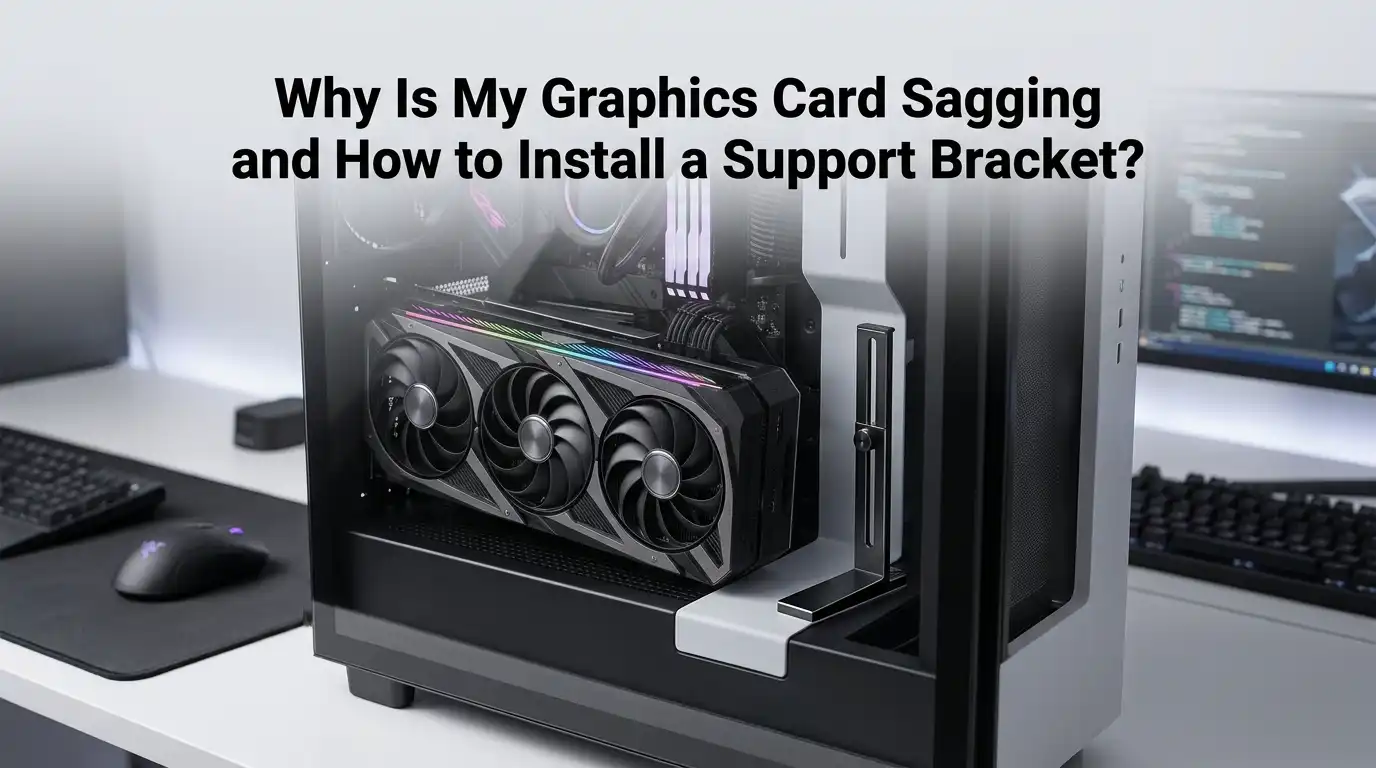
Adjustable metal stands sit on the floor of your PC case and push the GPU up from below. They have a telescoping pole that you can extend to the exact height you need. Most models use a soft rubber or silicone tip to protect the card’s backplate.
Pros: These brackets are sturdy, affordable, and work with almost any case. They support heavy GPUs well and need no screws or modifications. Installation takes less than five minutes.
Cons: They take up floor space and can interfere with bottom mounted fans or cable routing. Some basic models look plain and may not match the style of a clean build. They also need to be readjusted if you move the PC.
Magnetic GPU Support Brackets
Magnetic brackets use strong magnets to stick to the bottom or side of your case. They work just like adjustable stands but without taking up screw holes. The magnetic base lets you move the support easily to find the perfect spot.
Pros: Magnetic brackets are quick to install, easy to reposition, and leave no marks on your case. They suit clean, screwless builds and work well with most steel PC cases.
Cons: They do not work on aluminum or tempered glass cases because magnets only stick to steel. The magnetic hold can also weaken if you bump the PC often. Heavy GPUs may need a stronger base than a magnetic bracket can provide on its own.
Anti Sag Arms Mounted to the Case
Anti sag arms screw directly into your case, usually on the rear panel or near the PCIe slots. They use a long metal arm that reaches across the GPU and holds it from above. Some models attach to the motherboard standoffs for extra stability.
Pros: These brackets offer the strongest and most stable support for heavy cards. They do not block the bottom of the case and leave room for fans and cables. Many come with adjustable height and angle settings.
Cons: Installation takes longer because you need to remove screws and align the arm carefully. They may not fit all case designs, and some block airflow above the GPU. Check your case dimensions before buying one.
Step by Step Guide to Install a GPU Support Bracket
Installing a support bracket is simple, even for beginners. Follow these steps carefully to keep your GPU safe. First, shut down your PC and unplug all cables including the power cord. Press the power button once to drain residual electricity.
Open your case side panel and locate the sagging GPU. Place the bracket under or beside the card, depending on the type you have.
Adjust the height until the GPU sits perfectly level with the PCIe slot. Tighten any screws or locking mechanisms to hold the bracket in place. Double check that the bracket does not block fans or RGB cables. Close the case, reconnect everything, and power on your PC.
Tips for Choosing the Right Support Bracket
Picking the right bracket depends on a few key factors. Start by measuring the height between your GPU and the case floor. This tells you which bracket sizes will fit. Next, weigh your GPU or check the manufacturer’s specs to see how much support you need.
Consider your case material. Aluminum and glass cases need non magnetic brackets. Steel cases work with any type. Think about looks too.
If you have a window panel and RGB lights, an acrylic or RGB bracket may match your build better. Always check user reviews for the bracket’s stability and build quality before buying. A good bracket should feel solid, adjust smoothly, and protect your card without blocking airflow.
How to Prevent GPU Sag in Future Builds
Prevention starts before you even install your GPU. When you build a new PC, pick a motherboard with a reinforced metal PCIe slot. These slots are much stronger and resist bending under heavy cards. Many modern motherboards now include this feature by default.
You can also choose a case with a built in GPU support bar. Brands like Lian Li, Cooler Master, and Fractal Design now include these in their newer cases.
Mounting the GPU vertically with a quality riser cable is another option, though it costs more. Always tighten the rear bracket screws firmly when you install the GPU, since loose screws make sag worse.
Frequently Asked Questions
Is a little bit of GPU sag normal?
Yes, a small amount of sag of one or two millimeters is normal for most modern graphics cards. It usually does not cause any harm. However, anything more than that should be supported to avoid long term damage to your PCIe slot and GPU.
Can GPU sag damage my motherboard?
Yes, severe GPU sag can damage your motherboard. Constant downward pressure can bend the PCIe slot, loosen the contacts, or even crack the slot away from the board. In bad cases, you may need to replace the entire motherboard.
How much weight can a PCIe slot hold safely?
Most PCIe slots can hold around 1 kilogram of weight safely. Modern high end GPUs often weigh much more than this, which is why support brackets have become a common accessory in many gaming PC builds today.
Do all graphics cards need a support bracket?
No, not all GPUs need a bracket. Small single fan or dual fan cards usually stay level on their own. Triple fan cards, large coolers, and any GPU heavier than 1 kilogram should always have a support bracket installed.
Can I make a DIY GPU support at home?
Yes, you can build a DIY support using Lego bricks, wooden blocks, foam, or fishing line. These work as temporary fixes and cost nothing. However, store bought brackets look cleaner, last longer, and offer more reliable support over time.
Will a support bracket block airflow in my case?
A well placed bracket does not block airflow. Most modern brackets are slim and designed to sit out of the way of fans. Just check the bracket position after installation to make sure it does not cover intake or exhaust fans.
How often should I check my GPU for sag?
Check your GPU every few months or whenever you clean your PC. Look for any new bending or tilting and adjust the support if needed. Regular checks help you catch sag early before it causes any real damage to your hardware.

Hi, I’m Rue Hessel, the founder and voice behind TheGenTool. I’m a passionate tech enthusiast who loves exploring the latest gadgets, smart devices, and electronics that shape our everyday lives. Through my website, I share honest, hands-on reviews of trending Amazon products to help you make smarter and more confident buying decisions.