Why Is My Computer Motherboard Beeping Continuously?
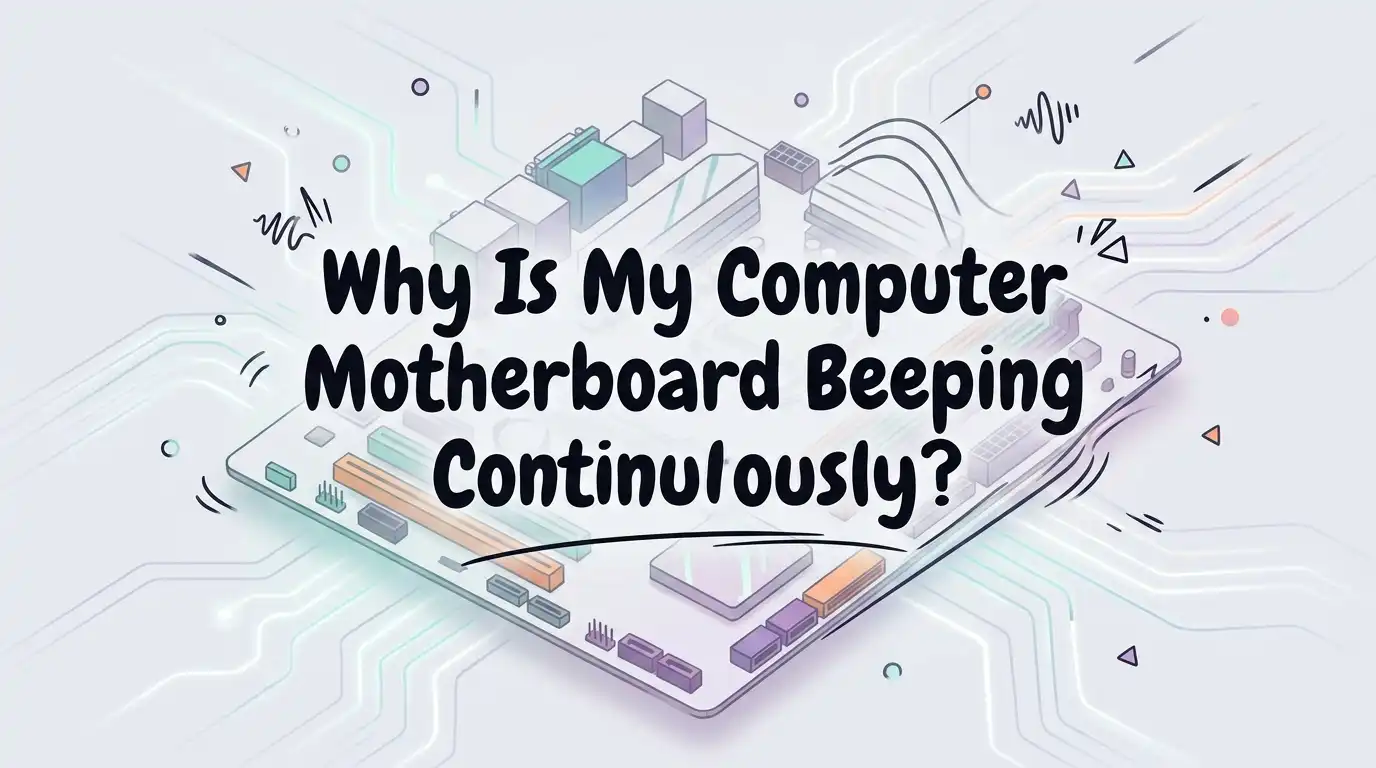
Your computer turns on, but instead of booting up, it greets you with a loud, nonstop beep. No screen. No Windows logo. Just that frustrating sound. Sound familiar? You are not alone, and the good news is this problem is usually fixable at home.
That continuous beeping is not random noise. It is your motherboard talking to you. It uses a built in speaker to send out beep codes, which are signals that tell you exactly what part of your computer is failing.
Once you learn to read these signals, you can fix the issue fast. This guide breaks down every common cause behind a continuously beeping motherboard.
Key Takeaways
- The beep is a warning signal. Your motherboard uses beep codes during POST (Power On Self Test) to report hardware errors. A continuous beep almost always points to a real component problem.
- RAM is the most common culprit. Loose, dirty, or faulty memory triggers continuous beeping more than any other cause. Reseating your RAM fixes the issue in most cases.
- The graphics card comes next. A poorly seated or failing GPU often produces long, repeating beeps with a black screen.
- Always count the beeps. The number, length, and pattern of beeps tells you which part is at fault. AMI, Award, Phoenix, Dell, and HP all use different beep code charts.
- Start with the simplest fix first. Power down, unplug everything, and reseat your components before you assume parts are dead. Most beeping problems cost zero dollars to solve.
- Overheating and power issues can also cause beeping, so check your cooling and power supply if reseating does not help.
What Do Continuous Motherboard Beeps Actually Mean
A continuous beep is your motherboard’s way of saying something failed during startup. When you press the power button, your computer runs a quick self check called the POST, which stands for Power On Self Test.
This test checks your RAM, processor, graphics card, and other core parts. If everything passes, you usually hear one short beep and the system boots. If something fails, the beeping begins.
A continuous or repeating beep most often means a memory or video failure. The motherboard cannot move past the test because a key component is missing, loose, or broken.
Think of it as an alarm, not a malfunction in itself. The sound is helping you. Your job is to figure out which part triggered the alarm and fix it.
Identify Your BIOS Type and Beep Code Chart
Different motherboards use different beep code languages. The same sound can mean different things on different machines. Before you start fixing, find out which BIOS your computer uses.
The three main types are AMI, Award, and Phoenix. Brand machines like Dell and HP use their own custom codes. To check, look at your motherboard model or the brand of your prebuilt PC.
Then search for that brand’s official beep code chart. For example, on AMI BIOS, a continuous beep often signals a memory or RAM problem. On Award and Phoenix, repeated short beeps can mean a power supply issue.
Pros: Matching the beep to the correct chart gives you an exact diagnosis and saves time.
Cons: Finding your specific chart can take effort, and older boards may have unclear documentation.
The Most Common Cause: A Loose or Faulty RAM Stick
If your motherboard beeps continuously and your screen stays black, bad RAM is the top suspect. Memory modules can shift loose over time, especially after you move your PC. Dust on the contacts also breaks the connection.
This single issue causes the majority of continuous beep complaints. Here is how to fix it. First, power down your computer fully and unplug it from the wall. Open the case and find the RAM slots near the processor. Push the small clips on each side outward to release the stick.
Remove the RAM completely. Wipe the gold contacts gently with a clean eraser, then blow out the slot. Push the stick back in firmly until both clips snap shut. If you have two sticks, try booting with just one at a time. This helps you find a single dead module.
Pros: Free, fast, and fixes most beeping problems.
Cons: Requires opening your case and handling delicate parts.
How to Test and Replace Bad Memory Modules
Sometimes reseating your RAM is not enough because the stick itself has failed. Faulty memory still triggers continuous beeping even when seated correctly. To confirm this, you need to test each module. Start by removing all sticks.
Insert just one stick into the first slot and power on. If it beeps, that stick or slot may be bad. Swap in the next stick and test again. Repeat until you find the working module. Try each stick in different slots too, since a dead slot can mimic a dead stick.
If one specific stick always causes beeping in every slot, that module is the problem and needs replacing. Make sure any replacement matches your motherboard’s supported memory type and speed.
Pros: Pinpoints the exact faulty part with no special tools.
Cons: Buying new RAM costs money, and testing takes patience.
Check and Reseat Your Graphics Card
After RAM, the graphics card is the second most common cause of continuous beeping with a blank screen. A GPU that slips out of its slot even slightly will stop the POST. This often happens during transport or after cleaning your PC.
To fix it, power down and unplug your computer. Open the case and locate the graphics card in the long PCIe slot. Unscrew the bracket that holds it to the case. Press the small release clip at the end of the slot, then lift the card straight out.
Clean the gold edge connectors with a soft eraser. Blow dust from the slot. Push the card back down firmly until the clip locks. Reconnect any power cables to the card. Then screw the bracket back and test.
Pros: Solves black screen beeping caused by GPU contact issues.
Cons: Heavy cards can be awkward to handle, and damaged slots need professional repair.
Inspect the CPU and Its Cooler
A processor problem can also cause your motherboard to beep continuously. This is less common but more serious. Bent pins, a loose cooler, or poor contact between the CPU and socket can stop the system from posting.
Never remove your CPU unless you feel confident. First, check that the cooler sits flat and tight on top of the processor. A loose cooler causes instant overheating, which triggers beeping and shutdown.
Make sure the CPU fan is spinning and plugged into the correct header. If you recently installed the processor yourself, gently inspect the socket pins for any that look bent.
Bent pins block the connection and cause errors. Reapplying thermal paste and reseating the cooler often restores normal contact and stops the alarm.
Pros: Fixes beeping linked to heat and poor processor contact.
Cons: Handling the CPU carries risk, and bent pins are hard to repair safely.
Overheating Alarms and How to Stop Them
Not every continuous beep means a dead part. Some beeps are heat alarms. Your motherboard monitors temperature, and if your processor gets too hot, it sounds a warning to protect itself. This usually happens after the computer has been running for a while, not right at startup.
If your beeping starts during use and the fans spin loudly, overheating is likely. To fix it, first clean all dust from your fans, heatsinks, and vents. Dust blocks airflow and traps heat. Make sure every fan spins freely. Check that your CPU cooler is mounted tightly.
You can also enter your BIOS and check the live temperature reading. If temperatures stay high, reapply fresh thermal paste between the CPU and cooler. Improving case airflow with better cable management helps too.
Pros: Cleaning and better airflow are cheap and improve performance.
Cons: Reapplying thermal paste requires care, and failing fans must be replaced.
Power Supply Problems That Trigger Beeping
A weak or failing power supply can cause repeated beeping, especially short repeating beeps. Your motherboard needs steady, sufficient power to pass the POST. If the power supply cannot deliver enough, the board complains.
This often happens with older units or after adding power hungry parts. First, check that the main 24 pin connector and the CPU power connector are pushed in fully. Loose power cables are a frequent cause.
Make sure all cables from the power supply to the motherboard and graphics card are secure. If you suspect the unit itself is failing, the safest test is swapping in a known working power supply.
A unit that struggles under load needs replacement. Always match the wattage to your system’s needs to avoid future issues.
Pros: Reseating cables is free and quick to try.
Cons: Power supplies are hard to test without a spare, and replacements cost money.
Disconnect Peripherals and External Devices
Sometimes the beeping comes from a simple stuck key or a faulty external device. A jammed keyboard key during startup can trigger continuous beeping on some systems. This is one of the easiest fixes to overlook.
Before you open your case, unplug everything that is not essential. Remove your keyboard, mouse, printer, webcam, USB drives, and any extra cards. Leave only the power cable connected. Then turn the computer on and listen. If the beeping stops, one of those devices caused the problem.
Plug each one back in one at a time. Power on after each reconnection until the beeping returns. The last device you added is the culprit. A stuck key just needs cleaning, while a faulty device should be replaced or repaired.
Pros: Extremely fast, free, and requires no tools at all.
Cons: It only solves a small share of beeping cases.
Clear the CMOS to Reset Your BIOS
A corrupted BIOS setting can sometimes cause startup beeping. Clearing the CMOS resets your BIOS back to factory defaults. This often clears errors caused by bad settings or a failed update. It is a safe and simple step worth trying.
You have two ways to do this. The first method uses the small round battery on your motherboard. Power down, unplug the PC, and gently pop out the silver coin battery.
Wait about five minutes, then put it back. The second method uses the CLEAR CMOS jumper found near the battery. Move the jumper across the pins for a few seconds, then return it.
After either method, power on and check if the beeping stopped. Your BIOS will rebuild default settings automatically.
Pros: Fixes beeping caused by bad settings with no cost.
Cons: You lose custom BIOS settings like boot order and time.
Test With Minimal Hardware Setup
When you cannot find the cause, strip your computer down to the bare minimum. This method helps you isolate the failing part by removing everything else. It is the most reliable troubleshooting trick. Power down and unplug your PC.
Disconnect all drives, extra RAM sticks, the graphics card if you have onboard graphics, and all peripherals. Leave only the motherboard, processor, cooler, one RAM stick, and the power supply connected. Then power on. If the beeping stops, one of the removed parts caused it.
Add components back one at a time, testing after each. When the beeping returns, the last part you added is faulty. This slow and steady approach finds the exact problem without guesswork or wasted spending.
Pros: Accurately isolates the bad component every time.
Cons: It is time consuming and requires fully opening your computer.
When to Call a Professional Technician
Some beeping problems go beyond simple home fixes. If you have tried reseating, cleaning, and testing with no success, it is time for expert help. Certain repairs carry real risk if done wrong.
Bent CPU pins, a cracked motherboard, or a dead chip need professional tools and skill. A technician can test your parts with proper diagnostic equipment. They can spot failures you cannot see with the naked eye.
Bring your beep code information with you, since it speeds up their diagnosis. This is also the right choice if your computer is under warranty.
Opening the case yourself may void that warranty, so check first. While professional repair costs money, it protects you from making an expensive mistake on a delicate machine.
Pros: Safe, accurate, and protects your warranty and your parts.
Cons: It costs money and means going without your computer for a while.
How to Prevent Continuous Beeping in the Future
Once you fix the beeping, a few simple habits keep it from coming back. Prevention is far easier than repair. Most beeping issues start with dust and loose parts.
Clean the inside of your computer every few months. Use compressed air to blow dust off fans, heatsinks, and slots. Make sure all your components stay firmly seated, especially after you move the PC.
Keep your computer in a cool, well ventilated spot away from walls and carpet. Good airflow stops overheating alarms. Avoid bumping or shaking the case while it runs.
When you add new parts, push them in fully and check the connections twice. These small steps protect your hardware and keep that annoying beep silent for good.
Pros: Free habits that extend your computer’s lifespan.
Cons: It takes regular time and a little effort to maintain.
Frequently Asked Questions
Why does my computer beep continuously and show no display?
A continuous beep with a black screen usually means your RAM or graphics card has failed or come loose. The motherboard cannot finish its startup test, so it sounds the alarm instead of showing the screen. Reseating your memory and graphics card fixes this in most cases. Power down, reseat both parts firmly, and test again.
Is continuous beeping always a memory problem?
No, but memory is the most common cause. Continuous beeping can also point to a graphics card failure, overheating, a power supply issue, or even a stuck keyboard key. The exact meaning depends on your BIOS type. Check your motherboard brand’s beep code chart to match the sound to the correct part.
Can I keep using my computer while it beeps?
You should not. The beeping means a core component failed, so your computer cannot run properly anyway. If the beep is an overheating alarm, continuing to run the machine could damage your processor. Turn it off, find the cause, and fix it before you use the computer again.
Will clearing the CMOS delete my files?
No, clearing the CMOS does not touch your files. It only resets your BIOS settings to factory defaults. Your photos, documents, and programs stay safe on your hard drive. You will only lose custom settings like boot order, time, and any overclocking you set up.
How do I know if my RAM is dead or just loose?
Start by reseating the RAM to rule out a loose connection. If the beeping continues, test each stick one at a time in different slots. A stick that causes beeping in every slot is dead. A slot that fails with every working stick points to a motherboard problem instead.
Should I worry if my computer beeps once at startup?
No, a single short beep is normal. It means your computer passed the self test and is booting correctly. Only continuous, repeating, or unusual beep patterns signal a problem. If you hear one beep and the system boots into your operating system, everything is working as it should.

Hi, I’m Rue Hessel, the founder and voice behind TheGenTool. I’m a passionate tech enthusiast who loves exploring the latest gadgets, smart devices, and electronics that shape our everyday lives. Through my website, I share honest, hands-on reviews of trending Amazon products to help you make smarter and more confident buying decisions.