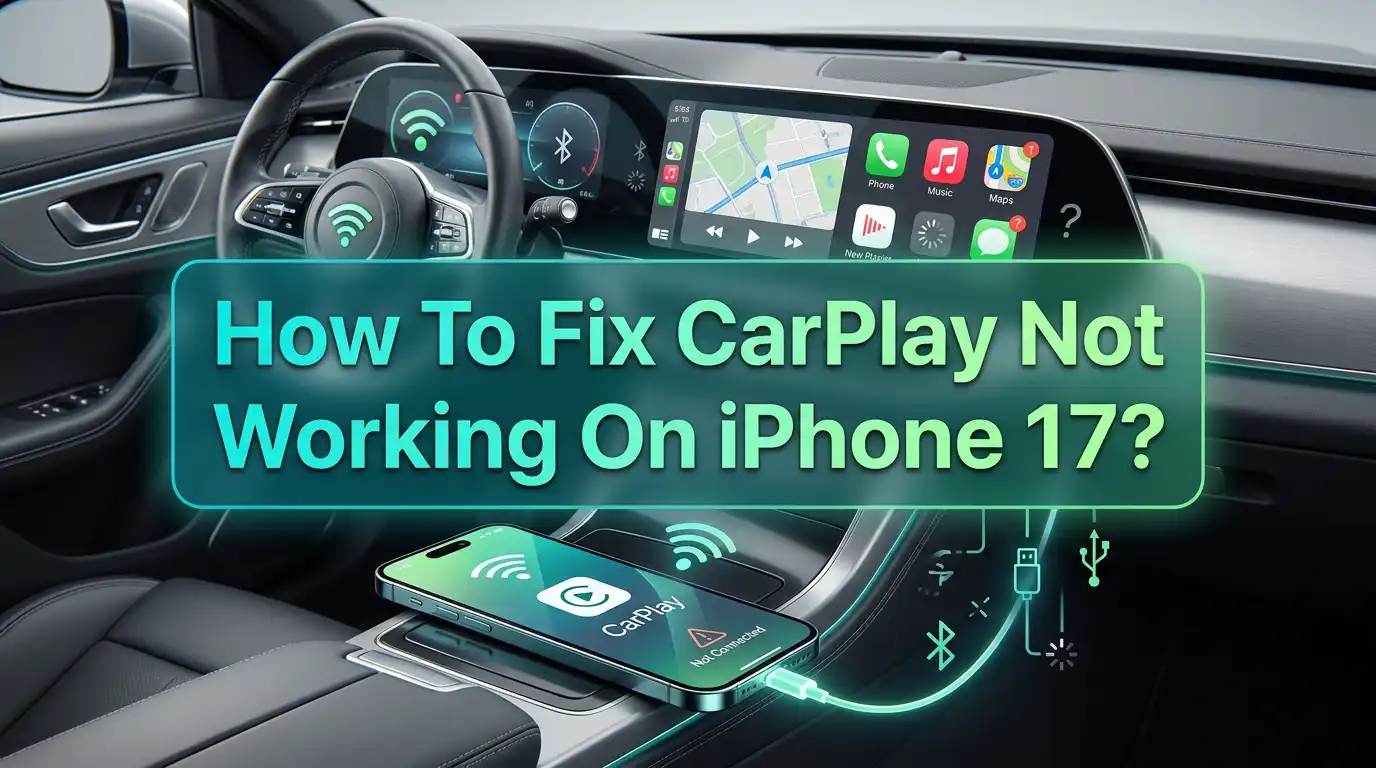
How To Fix CarPlay Not Working On iPhone 17?
Apple CarPlay transforms your driving experience by seamlessly integrating your iPhone with your vehicle’s infotainment system.
However, many iPhone 17 users are encountering frustrating situations where CarPlay fails to connect, disconnects randomly, or doesn’t work at all. These issues can prevent you from accessing navigation, making hands-free calls, or controlling music while driving.
CarPlay connectivity problems can stem from various sources including software bugs, incompatible settings, cable issues, or vehicle system glitches.
In a Nutshell
- Restart both your iPhone and car’s infotainment system to clear temporary glitches affecting connection
- Check cable quality if using wired CarPlay, as damaged or non-certified cables cause frequent failures
- Verify CarPlay is enabled in your iPhone’s Screen Time settings and in your vehicle’s system
- Reset network settings on your iPhone to eliminate corrupted Bluetooth and Wi-Fi configurations
- Update both iOS and car firmware to ensure compatibility between your iPhone 17 and vehicle system
Understanding CarPlay Connection Problems
CarPlay connectivity issues manifest in several ways. Your iPhone might not appear in the car’s display when connected, the connection might establish but then drop repeatedly, or CarPlay might work intermittently. Some users experience issues where only certain features like audio work while navigation fails.
The iPhone 17 connects to CarPlay via either a wired USB connection or wireless Bluetooth and Wi-Fi. Wired connections are generally more stable but vulnerable to cable damage, while wireless CarPlay depends on proper Bluetooth pairing and Wi-Fi authentication.
Software compatibility plays a crucial role. Your vehicle’s infotainment system has its own firmware that must properly communicate with iOS. When Apple releases major iOS updates like those accompanying the iPhone 17, temporary incompatibilities can emerge until car manufacturers release firmware updates to address new protocols.
Additionally, certain iPhone settings like restrictions in Screen Time, VPN configurations, or network preferences can interfere with CarPlay’s ability to establish connections. Understanding which component is failing helps target the right solution.
Restart Your iPhone 17
A simple restart resolves many temporary software glitches that prevent CarPlay from functioning. Restarting clears the memory and resets all running processes, including the CarPlay communication modules.
Press and hold the Side button and either Volume button simultaneously until the power-off slider appears. Drag the slider to turn off your iPhone. Wait 30 seconds, then press and hold the Side button again until you see the Apple logo.
After restarting, your iPhone reinitializes all system services including Bluetooth, Wi-Fi, and USB communication protocols. These fresh starts often resolve issues where CarPlay services crashed or entered error states during previous usage.
This method is particularly effective when CarPlay was working previously but suddenly stopped. The restart eliminates software conflicts that developed since your last device reboot. It’s a zero-risk solution that takes only a couple of minutes.
Pros: Quick and easy first troubleshooting step. No data loss or settings changes. Resolves many temporary software glitches.
Cons: Only addresses software issues, not hardware or configuration problems. Requires brief interruption of device use.
Restart Your Car’s Infotainment System
Your vehicle’s infotainment system is essentially a computer that can experience software glitches just like your iPhone. Restarting it clears its memory and resets the CarPlay connection modules.
The restart process varies by vehicle manufacturer. Some systems have a dedicated restart option in their settings menu. Others require turning off the vehicle completely, waiting for all screens to go dark, then restarting. Check your vehicle’s manual for specific instructions.
For many vehicles, the process involves turning off the ignition, opening the driver’s door to ensure the vehicle fully powers down, waiting 2-3 minutes, then restarting. This ensures the infotainment system completely shuts down rather than entering sleep mode.
After restarting, the infotainment system reinitializes its Bluetooth and USB connections. This fresh start can resolve issues where the car’s system became confused about device pairings or entered an error state that prevented new CarPlay connections.
Pros: Resolves vehicle-side software issues. Clears corrupted connection states in car’s system. Often fixes problems that iPhone-side solutions can’t address.
Cons: Restart procedure varies by vehicle and may not be obvious. Requires vehicle to be safely parked. May reset some vehicle settings.
Check and Replace Your USB Cable
For wired CarPlay, cable quality is critical. Many connection problems stem from damaged, frayed, or non-certified cables that can’t maintain stable data transmission. Even cables that still charge your iPhone might have damaged data wires.
Inspect your cable carefully for visible damage including fraying, exposed wires, bent connectors, or discoloration. Even minor damage can cause intermittent connection failures. Twist and bend the cable gently while connected to see if CarPlay connects or disconnects, indicating internal wire breaks.
Use only Apple-certified MFi cables for CarPlay connections. Non-certified cables often lack proper data line quality or authentication chips required for CarPlay. Look for the “Made for iPhone” badge on the packaging or connector.
Try a different certified cable, preferably Apple’s original cable, to determine if your current cable is the problem. If CarPlay works reliably with a different cable, you’ve identified the issue. Keep a dedicated high-quality cable in your vehicle for CarPlay use.
Pros: Simple and common solution for wired CarPlay issues. Easy to test with spare cable. Certified cables improve overall reliability.
Cons: Quality cables can be expensive. Doesn’t address wireless CarPlay issues. May need multiple cables for testing.
Verify CarPlay is Enabled in Settings
CarPlay can be disabled through iPhone settings, particularly in Screen Time restrictions. If disabled, your iPhone won’t respond to CarPlay connection attempts from your vehicle, even if everything else is properly configured.
Go to Settings > Screen Time > Content & Privacy Restrictions > Allowed Apps. Scroll down and ensure CarPlay is toggled on. If it’s off, your iPhone will ignore CarPlay requests. Toggle it on if needed.
Also check Settings > General > CarPlay. You should see your vehicle listed under “My Cars” if you’ve connected before. If your car doesn’t appear or shows as disconnected, you may need to establish a fresh connection by forgetting and re-pairing.
Some users accidentally disable CarPlay through restrictions without realizing it. This is particularly common if Screen Time restrictions were set up to limit features or if the iPhone was configured for a child’s use before being repurposed.
Pros: Quick setting check that resolves accidental disabling. No hardware changes required. Immediate fix if CarPlay was simply restricted.
Cons: Only resolves cases where CarPlay was deliberately or accidentally disabled. Doesn’t address connection quality issues.
Forget and Re-pair Your Vehicle
Connection profiles can become corrupted over time, causing persistent CarPlay issues. Removing your vehicle from your iPhone’s known devices and re-establishing the connection creates fresh authentication credentials.
For wireless CarPlay, go to Settings > General > CarPlay, tap your car’s name, then select Forget This Car. Also go to Settings > Bluetooth, find your car in the device list, tap the info icon, and select Forget This Device.
For wired CarPlay, the same process applies, though you may not see a Bluetooth entry. Forgetting the CarPlay connection removes all stored preferences and authentication data. This forces a completely fresh pairing when you reconnect.
After forgetting, restart both your iPhone and vehicle’s infotainment system. Then initiate CarPlay connection from scratch. For wireless, start the pairing from your car’s interface. For wired, simply connect the cable and follow the on-screen prompts.
Pros: Creates clean connection profile eliminating corruption. Often resolves persistent authentication issues. Works for both wired and wireless CarPlay.
Cons: Requires re-entering preferences and reconfiguring settings. Pairing process varies by vehicle. May need to repeat if corruption occurs again.
Reset Network Settings on iPhone
Network settings corruption affects both Bluetooth and Wi-Fi, which are essential for wireless CarPlay. Even wired CarPlay uses Bluetooth for certain features. Resetting network settings restores default configurations that optimize connectivity.
Navigate to Settings > General > Transfer or Reset iPhone > Reset > Reset Network Settings. Enter your passcode when prompted. Your iPhone will restart automatically after the reset completes.
This reset erases all saved Wi-Fi networks, Bluetooth pairings, VPN configurations, and cellular settings. While comprehensive, it eliminates any corrupted configurations that prevent CarPlay from establishing or maintaining connections properly.
After the reset, you’ll need to reconnect to your Wi-Fi networks and re-pair Bluetooth devices including your vehicle. For CarPlay, this means establishing a fresh connection, which often resolves issues that persisted despite other troubleshooting attempts.
Pros: Eliminates deep network configuration issues. Effective for wireless CarPlay problems. Addresses Bluetooth and Wi-Fi issues simultaneously.
Cons: Removes all saved networks and Bluetooth devices. Requires reconfiguring network preferences. Doesn’t delete personal data but requires setup time.
Update iOS to Latest Version
Apple regularly releases iOS updates containing CarPlay bug fixes and compatibility improvements. Running outdated software can leave you vulnerable to known issues that have already been patched in newer versions.
Go to Settings > General > Software Update. If an update is available, connect to Wi-Fi and ensure your battery is at least 50% charged or connect to power. Tap Download and Install to proceed.
iOS updates often include specific fixes for CarPlay connectivity, audio routing, and compatibility with various vehicle models. Apple works with car manufacturers to identify and resolve integration issues, with fixes distributed through iOS updates.
Some iPhone 17 CarPlay issues were directly related to initial iOS versions that shipped with the device. Subsequent updates addressed these problems. Staying current with iOS ensures you have the latest compatibility improvements and bug fixes.
Pros: Official Apple solution for known bugs. Includes compatibility improvements for various car models. Often resolves issues without manual troubleshooting.
Cons: Requires Wi-Fi connection and time for download and installation. May introduce new issues in rare cases. Can’t downgrade if problems occur.
Update Your Vehicle’s Infotainment Firmware
Car manufacturers release firmware updates for infotainment systems that improve CarPlay compatibility, fix bugs, and add features. Your vehicle may have outdated firmware that isn’t fully compatible with the iPhone 17.
Check your vehicle manufacturer’s website or mobile app for available updates. Many newer vehicles can download updates over-the-air when connected to Wi-Fi. Older systems might require visiting a dealership for manual updates via USB or service connection.
The update process varies significantly by manufacturer. Some systems like Tesla download automatically, while others require explicit user action. Check your vehicle’s manual or settings menu for a system update or software version option.
Contact your dealership’s service department if you’re unsure about update availability or procedures. They can check if updates are available for your specific vehicle and infotainment system version. Some dealerships perform updates during regular maintenance.
Pros: Resolves vehicle-side compatibility issues. Adds new features and improvements. Official manufacturer solution for known problems.
Cons: Update availability and process vary widely by manufacturer. May require dealership visit for some vehicles. Time-consuming update process.
Check USB Port in Your Vehicle
The USB port you’re using might be the problem. Many vehicles have multiple USB ports, but not all support CarPlay. Some are designed only for charging or media playback from USB storage devices.
Consult your vehicle’s manual to identify which USB port supports CarPlay. It’s typically labeled with a smartphone icon or specifically marked for CarPlay. Try all available USB ports to determine if one works while others don’t.
Inspect the USB port for debris, damage, or loose connections. Use a flashlight to look inside the port. Dirt, lint, or corrosion can prevent proper contact between the cable and port. Carefully clean the port with compressed air or a soft brush.
Some vehicles have USB hubs or extension cables between the visible port and the actual system connection. These intermediate connections can fail or degrade. If your vehicle’s USB port is damaged or worn, it may need replacement by a qualified technician.
Pros: Identifies port-specific issues. Simple to test different ports. May reveal hardware problems requiring repair.
Cons: Only applicable to wired CarPlay. Port replacement may be expensive. Not all vehicles have multiple USB ports.
Disable VPN and Proxies
Virtual Private Networks (VPNs) and proxy servers can interfere with CarPlay’s network communication, particularly for wireless CarPlay which uses Wi-Fi. These services route internet traffic through intermediaries that can disrupt CarPlay’s direct communication protocols.
Go to Settings > General > VPN & Device Management and turn off any active VPN connections before attempting CarPlay. Some VPN apps also have settings that keep the VPN active even when the main toggle is off, so check the VPN app’s settings directly.
Similarly, if you’ve configured proxy settings for Wi-Fi networks, these can interfere. Go to Settings > Wi-Fi, tap the info icon next to your connected network, and ensure Configure Proxy is set to Off or Automatic.
After disabling VPN and proxy services, attempt to connect CarPlay again. If successful, you can try reconnecting the VPN after CarPlay is established, though some VPNs will cause CarPlay to drop when activated.
Pros: Simple settings change. No permanent modifications. Can improve wireless CarPlay reliability.
Cons: Requires disabling privacy-enhancing services while driving. May not be the issue if you don’t use VPN. Need to remember to disable VPN each time.
Check Bluetooth and Wi-Fi Settings
Wireless CarPlay requires both Bluetooth and Wi-Fi to be enabled on your iPhone. Bluetooth handles the initial pairing and connection establishment, while Wi-Fi carries the actual data for CarPlay’s interface and features.
Go to Settings and verify that both Bluetooth and Wi-Fi toggles are turned on. Simply having them enabled in Control Center isn’t always sufficient; they should be fully enabled in Settings. Some users report CarPlay issues when Wi-Fi is off even though Bluetooth is on.
Ensure your iPhone isn’t connected to other Wi-Fi networks that might take priority. Your iPhone should connect to the car’s dedicated Wi-Fi network for CarPlay. Go to Settings > Wi-Fi and verify you’re not connected to home or office networks.
Some vehicles require you to enable wireless CarPlay in the car’s settings menu first. Check your vehicle’s infotainment settings for an option to enable wireless CarPlay or allow wireless device connections. This varies significantly by manufacturer.
Pros: Essential check for wireless CarPlay. Simple toggle verification. May reveal settings inadvertently changed.
Cons: Only applicable to wireless CarPlay issues. May seem obvious but often overlooked. Doesn’t address connection quality problems.
Remove iPhone Case or Accessories
Thick cases, wallet attachments, or metal accessories can interfere with wireless charging and CarPlay signals, particularly affecting wireless CarPlay connections. They can also physically prevent proper cable insertion for wired CarPlay.
Remove any thick protective case, especially those with metal components, card holders, or battery packs. These can create physical barriers that disrupt wireless signals or prevent cables from fully inserting into your iPhone’s port.
Check that your Lightning or USB-C port is fully accessible. Some cases have port openings that are too small or misaligned, preventing proper cable insertion. Even a slightly loose connection can cause intermittent CarPlay failures.
For wireless CarPlay, metal cases or accessories can create electromagnetic interference or signal attenuation. Try connecting without the case to determine if it’s causing issues. If CarPlay works without the case, consider a different case design that doesn’t interfere.
Pros: Free solution requiring no purchases. Immediately testable. May improve various wireless functions beyond CarPlay.
Cons: Leaves phone without protection during testing. May require purchasing different case. Not convenient for daily use if case is the cause.
Check for iOS and App Conflicts
Certain third-party apps can conflict with CarPlay functionality, particularly apps that modify system behavior, manage audio routing, or use aggressive background processes. Recently installed apps might be the culprit if CarPlay stopped working suddenly.
Try putting your iPhone in Safe Mode by restarting it. While iOS doesn’t have a traditional safe mode like computers, restarting disables certain background processes that might interfere. Test CarPlay immediately after restart before opening any apps.
If you recently installed new apps around the time CarPlay issues began, try uninstalling them to see if functionality restores. Apps related to audio management, Bluetooth control, or automation are most likely to cause conflicts.
Check if any apps have requested permission to modify system settings or control Bluetooth and Wi-Fi. Go to Settings > Privacy & Security and review permissions granted to apps. Revoke unnecessary permissions that might interfere with CarPlay.
Pros: Identifies software conflicts causing issues. Free solution. May improve overall system stability.
Cons: Time-consuming to isolate specific problematic apps. May require uninstalling useful applications. Not guaranteed to find a conflicting app.
Perform Factory Reset as Last Resort
If all other solutions fail, a factory reset returns your iPhone to its original state, eliminating any deep software corruption that might prevent CarPlay from working. This is comprehensive but time-consuming and should only be attempted after exhausting other options.
First, back up your iPhone using iCloud or a computer with iTunes/Finder. Ensure the backup completes successfully before proceeding. Go to Settings > General > Transfer or Reset iPhone > Erase All Content and Settings.
Enter your passcode and Apple ID password to confirm. The reset process erases everything and reinstalls iOS. After completion, you can restore your data from the backup you created, ensuring you start with a clean software environment while recovering your personal information.
Test CarPlay before restoring your backup to determine if the clean install resolves the issue. If it works, the problem was software-related. If it still fails after a clean install, the issue is likely hardware-related or vehicle-specific, requiring different approaches.
Pros: Eliminates all software corruption completely. Provides definitive test of software vs hardware issues. Often resolves persistent problems.
Cons: Time-consuming process requiring backup and restoration. Temporary loss of device access. Settings and preferences require reconfiguration.
Frequently Asked Questions
Why does CarPlay keep disconnecting randomly?
Random CarPlay disconnections typically result from poor cable quality for wired connections or Bluetooth and Wi-Fi interference for wireless connections. For wired CarPlay, try a different certified cable and ensure the USB port in your vehicle is clean and undamaged. For wireless, ensure no other devices are interfering with Bluetooth signals and that you’re not connected to competing Wi-Fi networks.
How do I enable CarPlay on my iPhone 17?
To enable CarPlay, go to Settings, then Screen Time, then Content & Privacy Restrictions, then Allowed Apps, and ensure CarPlay is toggled on. If you don’t see this option, Screen Time restrictions might not be active. Next, connect your iPhone to your vehicle either via USB cable or wireless pairing. For wired, simply plug in a certified cable to the CarPlay-enabled USB port. For wireless, enable Bluetooth and Wi-Fi on your iPhone, then initiate pairing from your car’s infotainment system. Follow the on-screen prompts to complete the connection.
Does wireless CarPlay work with iPhone 17?
Yes, the iPhone 17 supports wireless CarPlay, but your vehicle must also support wireless CarPlay functionality. Not all vehicles with CarPlay support wireless connections; many only support wired USB connections. Check your vehicle’s manual or contact the manufacturer to confirm wireless CarPlay compatibility. If your vehicle supports it, enable Bluetooth and Wi-Fi on your iPhone, then initiate pairing from your car’s system.
Can a software update fix CarPlay issues?
Yes, software updates frequently include CarPlay bug fixes and compatibility improvements. Apple releases iOS updates that address known CarPlay problems, while car manufacturers release infotainment firmware updates that improve iPhone compatibility. Always update your iPhone to the latest iOS version through Settings, General, Software Update. For vehicle updates, check your car manufacturer’s website, mobile app, or contact your dealership service department.
Why does CarPlay work in some cars but not others?
CarPlay functionality varies by vehicle because different manufacturers implement the system differently and update their firmware on different schedules. Newer vehicles typically have better iPhone 17 compatibility because they were designed with current iOS versions in mind. Older vehicles that received CarPlay through software updates may have compatibility issues with newer iPhone models until the car manufacturer releases firmware updates.

Hi, I’m Rue Hessel, the founder and voice behind TheGenTool. I’m a passionate tech enthusiast who loves exploring the latest gadgets, smart devices, and electronics that shape our everyday lives. Through my website, I share honest, hands-on reviews of trending Amazon products to help you make smarter and more confident buying decisions.