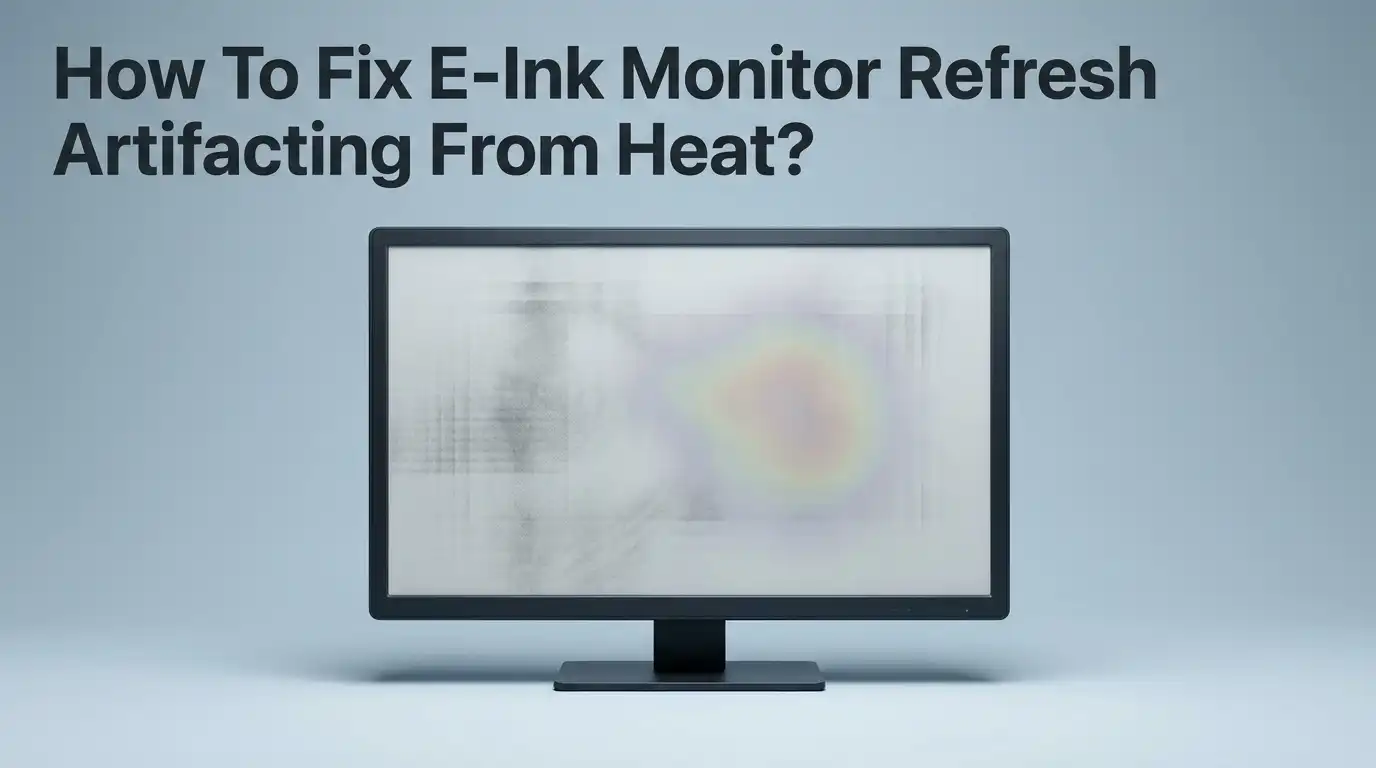
How To Fix E-Ink Monitor Refresh Artifacting From Heat?
Do you see strange shadows or ghost images on your e-ink monitor? This often happens when heat affects the screen’s refresh cycle.
E-ink displays react to temperature changes in unique ways. When the screen gets too warm or too cold, pixels do not update properly. This leaves behind ghosting or artifacting that makes text and images look messy.
The good news is that this problem is fixable. You do not need special tools or technical skills. You just need to understand how temperature affects your display.
In this guide, we will explain why heat causes artifacting on e-ink screens. We will show you how to stabilize your monitor’s temperature for the best results.
You will also learn the difference between full refresh and partial refresh modes. Knowing when to use each one can save you from constant ghosting issues.
By the end of this article, you will know exactly how to clear artifacts and keep your screen looking crisp. Let’s get your e-ink monitor back to working like new.
In a Nutshell
Here is a quick summary to help you fix the issue fast.
-
Let your screen rest first. Give your monitor time to reach room temperature, around 25°C, before you try any refresh. This usually takes about 6 hours if the device was very cold or hot.
-
Always choose full refresh over partial refresh. A full refresh clears the entire screen and resets every pixel. This step removes ghosting that heat leaves behind.
-
Space out your refresh cycles. Wait at least 3 minutes between each refresh attempt. Refreshing too often can make artifacting worse instead of better.
-
Match your settings to the temperature. Cold rooms need different update patterns than warm rooms. Adjusting this helps your screen display colors correctly again.
-
Avoid partial refresh in unstable conditions. This mode works fine at stable temperatures. But it often fails when heat or cold is still affecting the screen.
-
Be patient with stubborn burn marks. Some ghosting needs several full refresh cycles to disappear completely. One flash may not be enough.
Understanding E-Ink Artifacting and Temperature Sensitivity
E-ink displays work differently than regular LCD screens. They use tiny capsules filled with charged particles to create images. When heat enters the system, these particles move faster and don’t settle into their proper positions. This causes ghosting and shadow marks to appear on your screen.
Temperature directly affects pixel behavior. When your monitor gets warm, the particles inside the display move around more freely. They leave behind faint traces of previous images. Cold temperatures create the opposite problem. Pixels become sluggish and don’t respond quickly to refresh commands. Both situations lead to visible artifacts on your screen.
The key difference lies in how e-ink updates work. Partial refresh mode moves only the pixels that need to change. This saves power but leaves residual electrical charges behind. These charges create ghost images when temperature swings occur. Full refresh mode clears every single pixel on the screen at once. It resets all electrical states and removes leftover charges completely.
Your monitor’s refresh pattern matters too. If you refresh the screen too often, you stress the display and create more artifacts. The particles need time to settle between updates. Waiting at least three minutes between refreshes gives them this recovery time.
Understanding this connection between heat and refresh behavior helps you troubleshoot problems faster. You now know why your screen shows artifacts and which refresh mode works best. Temperature stability is your first defense against ghosting. Once you control the environment around your monitor, the refresh process becomes much more reliable and effective.
Why Heat and Cold Cause Ghosting and Refresh Errors
Heat and cold create different problems for e-ink displays because these screens rely on tiny charged particles moving inside a sealed chamber. When temperature changes, the particles respond differently to electrical signals. This is why you see ghosting and refresh errors.
Cold temperatures make ghosting worse. Your pixels hold onto their previous states longer when the display is cold. The charged particles move slowly in low temperatures, so they don’t reset properly during refresh cycles. This leaves shadow images on your screen even after you try to clear them.
Heat causes the opposite problem. Warm temperatures make particles move too quickly. The display struggles to hold a stable image because the particles shift around unpredictably. You might see color shifts or artifacts that appear randomly across the screen.
The refresh pattern your monitor uses directly impacts how these temperature effects show up. Partial refresh mode works fine in stable, room temperature conditions. But when temperatures swing up or down, partial refresh leaves residual pixel states behind. These leftover charges create the ghosting you notice.
Full refresh cycles solve this by completely resetting every pixel on the screen. The entire display goes through a complete electrical reset, clearing all residual charges regardless of temperature.
Flashing works because it wipes the slate clean. Your monitor essentially says “forget everything” and resets to a neutral state before displaying new content.
This is why spacing out your refresh attempts matters too. When you refresh too frequently in unstable thermal conditions, the particles don’t have time to settle. They keep bouncing around, making artifacts worse instead of better.
Understanding this temperature relationship helps you choose the right refresh strategy for your specific environment.
Step-by-Step: Stabilizing Display Temperature Before Refreshing
Before you refresh your e-ink monitor, you need to stabilize its temperature. This step prevents most artifacting problems from getting worse.
Start by turning off your monitor completely. Leave it unplugged for at least 30 minutes. This allows the display to cool down naturally and reach a stable state.
Next, place your monitor in a room where the temperature stays around 25°C (77°F). Room temperature is ideal for e-ink displays. Avoid areas near windows, heaters, or air conditioning vents that create temperature swings.
Wait for 6 hours before attempting any refresh cycles. This sounds long, but it’s crucial for success. During this time, the internal particles in your display settle into their natural resting positions. Temperature fluctuations during this period will undo your progress.
Check the room temperature with a simple thermometer. If your space is colder than 20°C or warmer than 30°C, adjust it first. Most e-ink monitors perform best in this range.
Avoid touching the monitor or moving it around during stabilization. Physical movement can create vibrations that interfere with particle settling. Let it sit completely undisturbed.
Once 6 hours have passed, verify the temperature hasn’t changed. If it has, restart your waiting period. Consistency matters more than speed here.
After stabilization, your monitor is ready for the refresh process. The display will respond much better to full refresh cycles now. You’ll see fewer artifacts and cleaner results overall.
This preparation step takes patience, but it eliminates most refresh problems before they start. Temperature stability is the foundation for successful e-ink display maintenance.
How to Perform a Full Refresh to Clear Artifacts
A full refresh clears artifacts by resetting every pixel on your e-ink monitor. This process removes ghosting and leftover marks from previous content that heat has made worse.
Start your full refresh when your monitor reaches room temperature. Your display should sit at around 25°C (77°F) for at least 6 hours before you begin. This stabilization period is critical because refreshing a warm monitor often fails to clear artifacts completely.
Access your monitor’s refresh settings through the control menu. Look for an option labeled “full refresh,” “complete refresh,” or “flash screen.” This differs from partial refresh modes, which only update changed areas and leave residual pixel charges behind.
Initiate the full refresh cycle. Your screen will go completely black, then white, then return to your normal display. This entire process typically takes 30 to 60 seconds. Do not interrupt it or turn off your monitor during this cycle.
Wait at least 3 minutes before performing another refresh. Refreshing too frequently within short intervals can actually create new artifacts instead of removing them. Your pixels need time to settle between cycles.
Repeat the full refresh once more if artifacts remain visible after the first cycle. Most problems clear after one or two complete refreshes at stable temperatures.
Monitor your display over the next few hours. If artifacts return, your room temperature likely fluctuated. Check your environment with a thermometer and adjust heating or cooling as needed.
Full refresh cycles work because they completely reset pixel states. Partial updates leave behind electrical charges that heat amplifies. By choosing full refresh over partial updates, you eliminate the root cause of heat related artifacting on your e-ink monitor.
Adjusting Refresh Intervals and Update Patterns for Ambient Conditions
Your e-ink monitor’s refresh intervals directly affect how heat causes artifacting. When you adjust these intervals, you’re essentially controlling how often your display resets its pixels based on temperature changes.
The key principle is simple: longer intervals between updates reduce thermal stress on your display. If your room temperature fluctuates frequently, your monitor struggles to keep up with constant refresh demands. This struggle creates visible artifacts like ghosting and color shifts.
Start by setting your minimum refresh interval to 3 minutes or longer. This gives your display time to stabilize between updates. In warmer environments, you might extend this to 5 or even 10 minutes. Your monitor needs breathing room to adjust to temperature changes without forcing constant pixel resets.
Partial refresh patterns amplify heat related problems. They only update sections of your screen, leaving some pixels in unstable states. Switch to full refresh mode instead. Full updates reset everything at once, which is much more reliable in fluctuating temperatures.
Monitor your ambient conditions throughout the day. Morning temperatures differ from afternoon temperatures. Adjust your refresh intervals accordingly. If your space gets warmer in the afternoon, increase your interval time during those hours.
Track which intervals work best in your specific environment. Different rooms have different thermal patterns. A basement stays cooler and more stable than an office near a window. Test intervals in 1 minute increments to find your optimal setting.
Document what works for you. Write down the temperature, time of day, and interval length when artifacts disappear. This creates a personal reference guide for your setup. Over time, you’ll develop an intuition for the right refresh pattern for your space and conditions.
Best Practices for Preventing Recurring Artifacts
Preventing recurring artifacts requires consistent habits and smart monitoring practices. The foundation starts with understanding your monitor’s thermal behavior and how it responds to your specific environment.
Set a strict minimum refresh interval of 3 minutes between updates. This spacing gives your display time to stabilize and prevents thermal stress from accumulating. Shorter intervals force your e-ink panel to work harder, generating excess heat that triggers ghosting and residual marks.
Always use full refresh cycles instead of partial updates. Partial refreshes only update certain screen sections, leaving electrical charges trapped in other pixels. These charges interact with heat and create visible artifacts. Full refreshes reset every pixel, eliminating this problem completely.
Track your room temperature throughout the day. Document when artifacts appear and disappear. You’ll notice patterns tied to specific temperatures or times. Use this data to adjust your refresh schedule accordingly. If afternoon heat causes problems, space your updates further apart during those hours.
Create a simple log with three columns: temperature, time, and artifact status. After two weeks, you’ll see exactly which conditions trigger issues in your space. This information helps you stay ahead of problems before they develop.
Maintain consistent room temperature around 25°C (77°F) whenever possible. Use fans or climate control to minimize fluctuations. Stable temperatures mean predictable monitor behavior and fewer surprises.
Check your monitor’s settings regularly. Some devices allow you to program refresh intervals automatically. Configure your monitor to follow the 3 minute minimum spacing you’ve established. Automation removes guesswork and ensures you never accidentally refresh too frequently.
These practices work together to eliminate recurring artifacts before they start affecting your work.
Common Mistakes That Worsen E-Ink Artifacting
Many people make mistakes that actually make e-ink artifacting worse instead of better. Understanding these errors helps you avoid them.
Refreshing too frequently is the biggest mistake. Many users think more refreshes equal better results. This backfires. Refreshing every minute or two creates constant thermal stress on your display. Each refresh cycle generates heat. Your pixels need time to stabilize between updates. The minimum safe interval is 3 minutes. Anything faster pushes your monitor into a cycle of repeated heating and cooling that triggers more ghosting, not less.
Using partial refresh mode during unstable temperatures compounds the problem. Partial refreshes only update certain screen sections. They leave other pixels in their previous electrical state. When your monitor experiences temperature fluctuations, these leftover charges create visible artifacts. Full refresh cycles clear everything at once. They reset all pixels to a neutral state. This eliminates the residual charges that cause ghosting.
Ignoring temperature conditions is another critical error. Your room temperature directly affects how your e-ink display performs. Cold environments make artifacts worse because pixel response times change. Some users refresh their monitors the same way regardless of whether it’s morning or evening, winter or summer. This approach fails. You need to adjust your refresh patterns based on actual ambient conditions.
Not allowing stabilization time before refreshing causes unnecessary problems. If you refresh immediately after your monitor experiences a temperature change, you’re working against the physics of the display. Wait for your screen to reach room temperature before performing refresh cycles.
These mistakes compound each other. Avoid all three, and your artifacts will improve significantly.
Troubleshooting Persistent Ghosting and Screen Burn
Persistent ghosting and screen burn happen when your e-ink monitor retains images from previous content. These marks linger because pixels stay partially charged after display updates. Heat amplifies this problem by making pixel states unstable and harder to clear completely.
The first step is understanding why ghosting persists. Partial refresh cycles leave residual electrical charges in pixels. These charges create faint shadows of old images on your screen. Full refresh cycles solve this by clearing all pixel states at once, which resets the entire display to a neutral state.
To eliminate stubborn ghosting, perform complete refresh cycles regularly. A full refresh takes longer than a partial one, but it removes all artifacts from your display memory. Run this process when you notice persistent marks that won’t disappear after normal use.
Temperature plays a critical role in ghosting removal. Cold environments make ghosting worse because pixels respond more slowly to electrical commands. Allow your monitor to reach room temperature around 25°C before attempting major refreshes. Wait at least 6 hours in stable conditions for best results.
If ghosting remains after full refreshes, try extending your minimum refresh interval to 5 minutes or longer. This gives pixels more time to stabilize between updates and reduces thermal stress. Monitor your results over several days to see if the artifacts fade.
Document what you observe during this process. Note the temperature, time of day, and whether ghosting improves or worsens. This information helps you identify patterns specific to your environment and adjust your refresh strategy accordingly.
Final Thoughts
Heat related artifacting on your e-ink monitor is a fixable problem. You just need patience and the right approach.
Temperature control stays at the center of every solution. Let your screen sit at room temperature for a few hours before you judge its performance.
Full refresh cycles remain your best tool against ghosting and burn. Skip partial refreshes when your environment feels unstable or too warm.
Remember the three minute rule. Give your display enough time between updates so pixels can settle properly.
Small habits make a big difference over time. Watch your room temperature and adjust your refresh pattern to match it.
Your e-ink monitor works best in stable conditions. Avoid placing it near heat sources like windows, heaters, or direct sunlight.
Think of temperature management as ongoing care, not a one time fix. Conditions change throughout the day, so your approach should too.
If artifacts keep appearing, go back to the basics. Check your refresh interval, confirm you are using full refresh mode, and verify your room temperature.
Most heat related issues resolve once you stabilize the environment and stick to full refresh cycles. Your display simply needs consistency to perform well.
Keep a simple routine each day. Check the temperature, wait for stabilization, then refresh fully.
Over time, this routine becomes second nature. You will notice fewer artifacts and clearer images.
E-ink technology rewards careful handling. Treat your monitor gently, respect its temperature needs, and it will serve you reliably.
Fixing heat related artifacting is not complicated. It just takes attention and a few consistent steps.
Stay patient with the process. Your screen will thank you with cleaner, sharper display quality.
Frequently Asked Questions
Why does my e-ink monitor show ghosting when it’s cold?
Cold temperatures slow down the pixel response time in e-ink displays. Your monitor struggles to clear residual electrical charges from previous images. This creates visible ghosting where old content lingers on screen.
Temperature directly impacts pixel behavior. When your room drops below 20°C, the effect worsens. The display needs more time to transition between states. Allow your monitor to reach room temperature (around 25°C) before performing refreshes.
What’s the difference between full refresh and partial refresh?
Full refresh clears every pixel on your screen completely. It resets all electrical charges and removes ghosting entirely. Partial refresh only updates specific areas that changed.
Full refresh is your best defense against artifacts. Partial refresh works fine in stable conditions. But when heat or temperature fluctuations occur, partial refresh leaves residual charges behind. These charges cause the ghosting you see.
How often should I refresh my e-ink monitor?
Stick to a minimum of 3 minutes between refresh cycles. This gives your pixels time to stabilize between updates. Refreshing more frequently than every 3 minutes actually makes artifacting worse.
Patience prevents problems. Many users think constant refreshing helps. It doesn’t. Your display needs rest periods to function properly. If stubborn ghosting persists, try extending the interval to 5 minutes.
Can I remove screen burn permanently?
Yes, but it requires consistent full refresh cycles. Screen burn happens when images stay on screen too long. Complete refresh cycles reset the pixel states and eliminate the burn marks.
Temperature stability speeds up this process. Keep your room at a consistent temperature while performing these refreshes. Most burn marks disappear within a few full refresh cycles.

Hi, I’m Rue Hessel, the founder and voice behind TheGenTool. I’m a passionate tech enthusiast who loves exploring the latest gadgets, smart devices, and electronics that shape our everyday lives. Through my website, I share honest, hands-on reviews of trending Amazon products to help you make smarter and more confident buying decisions.