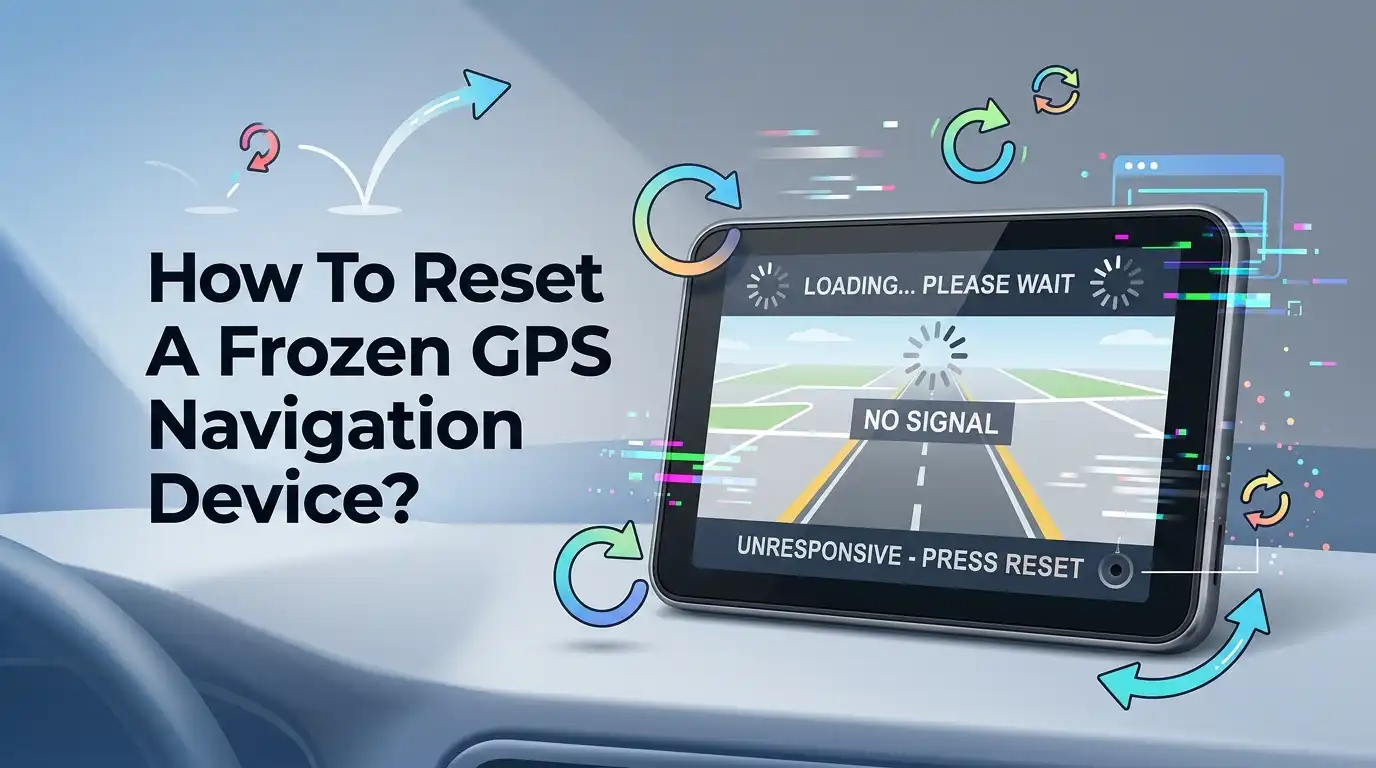
How To Reset A Frozen GPS Navigation Device?
Your GPS freezes at the worst moment. You are driving to a new place. The map stops moving. The screen ignores your taps. Your heart sinks a little. Most people feel stuck right here, but the fix is often easier than you think.
A frozen GPS device is a common problem. It happens to Garmin, TomTom, and built in car units alike. The good news is that you can usually solve it in minutes. You do not need a repair shop for most freezes. You just need the right steps in the right order.
This guide walks you through every method. You will learn the soft reset, the hard reset, and the full factory reset. You will also learn why freezes happen and how to stop them in the future. Let us bring your device back to life.
Key Takeaways
- Start with the simplest fix first. A soft reset solves most freezes. You hold the power button for around 10 to 30 seconds. This forces a clean restart without erasing your saved data.
- A hard reset uses a pinhole button. Many older units have a tiny reset hole. You press it with a paperclip. This cuts power instantly when the screen ignores every touch.
- Drain the battery as a last simple trick. If the device stays frozen, unplug it and let the battery die fully. Then charge it again. This clears stubborn memory glitches.
- A factory reset is the final option. It wipes all your settings and saved places. Use it only when nothing else works, and back up your data first if you can.
- Most freezes come from heat, full memory, or old firmware. You can prevent many of them with simple habits like updates and a cool dashboard spot.
- Built in car GPS units have their own reset paths. These often involve steering wheel buttons or a console reset switch.
What Does A Frozen GPS Device Actually Mean?
A frozen GPS device means the software has stalled. The screen shows an image, but nothing responds. Your taps do nothing. The map will not scroll. Sometimes the unit gets stuck on the startup logo and never moves past it.
This is different from a dead device. A dead device shows no light and no screen at all. A frozen device still shows something. That small difference matters because it points you to the right fix.
Think of a freeze like a traffic jam inside the device. The processor tries to do too many things at once. It gets blocked. The restart clears the jam. In most cases, the hardware is perfectly fine. The software just needs a fresh start to run smoothly again.
Why Does Your GPS Navigation Device Freeze?
Knowing the cause helps you pick the right repair. GPS freezes rarely happen for no reason. A few common triggers cause most cases. Understanding them also helps you prevent the next one.
The most common reason is heat. A GPS unit sits on your dashboard under direct sun. The internal parts overheat and stall. Another big cause is full or corrupted memory. Too many saved routes and map files clog the system.
Old firmware is another frequent culprit. Outdated software carries bugs that lock up the screen. A weak satellite signal can also cause a stall while the device searches. Finally, a low or failing battery often triggers strange freezes. Each cause has a matching fix, which we cover below.
Step One: Try A Soft Reset First
A soft reset is your first move. It restarts the device without deleting anything. Your saved places, settings, and maps stay safe. This single step fixes the majority of frozen GPS units, so always start here.
The method is simple. Press and hold the power button for around 10 to 30 seconds. Keep holding even after the screen goes dark. Let go when the device powers off or shows the startup logo. Then turn it back on as normal.
On many Garmin units, you hold the power button until the screen blanks. On TomTom units, you hold it until you hear the drum roll sound. The exact time varies by brand, so hold a little longer if needed.
Pros: It is fast, safe, and keeps all your data. Cons: It does not fix deeper software problems, and it may not work if the power button itself is unresponsive.
Step Two: Perform A Hard Reset With The Pinhole Button
Some freezes ignore the soft reset. The screen stays locked no matter how long you hold the button. This is when a hard reset helps. Many older GPS units have a small reset hole built in for exactly this.
Look for a tiny hole on the back or near the SD card slot. It is often labeled “reset.” Straighten a paperclip and gently press inside the hole for about 15 seconds. This cuts power directly to the board and forces a full reboot.
The hard reset works because it bypasses the frozen software. It pulls the plug at the hardware level. The device then starts clean. On most units, this does not erase your saved data, though a few models may clear minor settings.
Pros: It works when the touchscreen is fully unresponsive. Cons: Not all modern devices have a pinhole, and pressing too hard can damage the port.
Step Three: Drain The Battery Completely
Sometimes the device stays stuck on a logo or black screen. Buttons do nothing. There is no reset hole. In this case, a full battery drain often works like magic. It is slow but very effective.
Here is the method. Unplug the GPS from all power and let it sit untouched. The frozen state still uses battery, so the charge will fade. Leave it for a full day if needed. Once the battery dies completely, the memory clears itself.
After it is fully dead, plug it back in and let it charge for at least an hour. Then try to turn it on. The fresh charge usually brings a working device back. This trick clears the most stubborn memory glitches that resets cannot reach.
Pros: It needs no tools and fixes deep stalls. Cons: It takes many hours, and you cannot use the device while you wait.
Step Four: Disconnect And Reconnect The Power Source
This step works well for both portable and car mounted units. A bad power connection can mimic a freeze. The device receives uneven power and stalls. A clean power cycle often clears it right away.
For a portable unit, unplug the USB cable, wait 60 seconds, then plug it back in. Hold the power button to off during this wait. This drains the small residual charge inside. After you reconnect, press power and watch for the startup screen.
For a hardwired car GPS, check the fuse or the dedicated power switch first. A loose cable causes random freezes. Reseat the connector firmly until it clicks. A solid connection often stops the freezing for good. This is the easiest fix many people skip.
Pros: It is quick and solves power related freezes. Cons: It will not help if the problem lives in the software rather than the cable.
Step Five: Reset A Built In Car Navigation System
Built in car GPS units work differently from portable ones. They tie into the car infotainment system. You cannot just hold a single power button. Instead, you use the controls built into your vehicle dashboard.
Most cars have a system reset button near the screen or in the center console. Press it with a paperclip or pen for several seconds. The screen will go black and reboot. Some models reset through the steering wheel by holding the volume down and a menu button together.
If buttons fail, you can pull the infotainment fuse for one minute. Your owner manual shows the exact fuse. Removing it cuts power and forces a fresh start. Reinstall it and the system reboots clean. Always check your manual, since each car brand differs.
Pros: It fixes the screen without a dealer visit. Cons: Fuse access can be awkward, and a wrong fuse may disable other features.
Step Six: Update The Firmware To Fix Software Bugs
A device that freezes again and again often has old firmware. Firmware is the core software that runs the unit. Outdated versions carry bugs that lock the screen. An update replaces the broken code with a stable version.
To update, connect the GPS to your computer with a USB cable. Open the official software from the brand, such as the Garmin or TomTom desktop app. The program checks for updates. It then installs the newest firmware automatically. Follow the on screen steps and do not unplug during the process.
An update often stops repeat freezes for good. It also adds new maps and features. Keep the device on charge while it updates, since a power loss midway can corrupt the install. Run updates every few months to stay ahead of bugs.
Pros: It fixes root causes and improves performance. Cons: It needs a computer and internet, and a failed update can cause new problems.
Step Seven: Clear Storage And Remove Corrupt Files
A full memory makes a GPS freeze often. The device cannot load new routes when storage is packed. Corrupt files cause the worst freezes. A single bad track or waypoint can lock the whole unit. Clearing space fixes this.
Connect the device to your computer. It appears like a USB drive. Back up your saved routes and favorites to a folder on the computer first. Then delete old trip logs, screenshots, and large unused map files. This frees the memory the device needs to run.
If you suspect a corrupt file, move all your navigation data to an SD card or computer. Then delete it from the device and reload only what you need. A clean memory runs faster and freezes less. This step often revives a device that froze with no clear cause.
Pros: It boosts speed and removes hidden glitches. Cons: You risk losing data if you delete without a backup first.
Step Eight: Perform A Full Factory Reset
When nothing else works, a factory reset is your final tool. It returns the device to the state it had when new. It erases all your settings, saved places, and personal data. Because of this, treat it as a last resort.
The method varies by brand. On many Garmin units, you turn the device off, then hold the power button until the logo appears and release it. A confirmation screen asks if you want to reset. On TomTom, you often pick the reset option from the settings menu, or enter recovery mode.
Back up your favorites and routes before you start if the screen still responds. A factory reset clears almost every software fault. It is the most powerful fix you have. After the reset, you set up the device again from scratch, just like the first day.
Pros: It fixes nearly all software issues. Cons: You lose all saved data and must reconfigure everything.
Step Nine: Check For Heat And Physical Damage
Hardware problems can also cause freezes. If resets fail again and again, look at the physical condition of the device. Heat is the top enemy of any GPS unit. It warps parts and stalls the processor on hot days.
Move the device out of direct sunlight and let it cool for an hour. A unit baking on the dashboard freezes easily. Mount it lower or use a sun shade. A cool device runs far more reliably. Heat damage often hides behind what looks like a software freeze.
Also check for cracks, a swollen battery, or water damage. A swollen battery is a safety risk and needs replacement. Loose internal parts from a drop can cause random freezes too. If you spot physical damage, a repair or replacement may be the only real fix.
Pros: It catches problems that resets cannot solve. Cons: Physical repairs can cost more than the device is worth.
How To Prevent Your GPS From Freezing Again
Prevention saves you stress on the road. A few simple habits keep your GPS running smooth. Most freezes are avoidable with regular care. Build these into your routine and you will rarely see a frozen screen again.
First, update the firmware and maps every few months. Fresh software carries fewer bugs. Second, keep the memory clean by deleting old routes and logs often. A device with free space runs faster. Third, protect the unit from heat with a shade or a cooler mounting spot.
Also, charge the battery fully before long trips and avoid letting it drain to zero too often. Restart the device now and then to clear small glitches before they grow. These small steps add up. They keep your GPS dependable for years and prevent the panic of a sudden freeze.
When To Contact Support Or Replace The Device
Sometimes a freeze means the device is truly failing. You have tried every reset. You updated the firmware. You cleared the memory. The unit still locks up. At this point, outside help is the smart choice.
Contact the brand support team first. Garmin, TomTom, and other makers offer free help by phone and chat. They may know a model specific trick. If the device is under warranty, they may repair or replace it for free. Always check your warranty status before you pay for anything.
If the device is old and out of warranty, weigh the repair cost against a new unit. Repairs on aging GPS devices often cost more than they are worth. A modern phone app can also replace a failing standalone unit. Choose the option that fits your needs and budget.
Frequently Asked Questions
Why does my GPS keep freezing even after a reset?
Repeat freezes usually point to old firmware, a full memory, or heat damage. A single reset clears the current stall but not the root cause. Update the software, clear old files, and keep the device cool. If it still freezes, the battery or internal hardware may be failing and need professional help.
Will a factory reset delete all my saved places?
Yes. A factory reset erases every setting, route, and favorite on the device. It returns the unit to its original new state. Always back up your data to a computer first if the screen still responds. After the reset, you set up the device again from scratch.
How long should I hold the power button to reset a frozen GPS?
Most devices need 10 to 30 seconds of a firm, steady press. Keep holding even after the screen goes dark. Let go only when the unit powers off or shows the startup logo. Some brands take a little longer, so hold a few extra seconds if nothing happens at first.
Can heat really cause my GPS to freeze?
Yes, heat is one of the top causes. A GPS unit on a sunny dashboard overheats fast. The internal parts stall and the screen locks up. Move the device into shade and let it cool for an hour. A sun shade or a lower mount helps prevent future heat freezes.
What if my GPS has no reset button or hole?
Many modern units skip the pinhole reset. In that case, use the soft reset by holding the power button. If that fails, drain the battery completely, then recharge and restart. A full battery drain clears stubborn glitches without any reset hole. This trick works on most sealed devices.
Is it safe to remove the car fuse to reset built in navigation?
It is generally safe if you pull the correct fuse listed in your owner manual. Wait about one minute, then reinstall it. The wrong fuse can disable airbags or other systems, so always check the manual first. If you feel unsure, a soft reset with the console button is the safer choice.

Hi, I’m Rue Hessel, the founder and voice behind TheGenTool. I’m a passionate tech enthusiast who loves exploring the latest gadgets, smart devices, and electronics that shape our everyday lives. Through my website, I share honest, hands-on reviews of trending Amazon products to help you make smarter and more confident buying decisions.