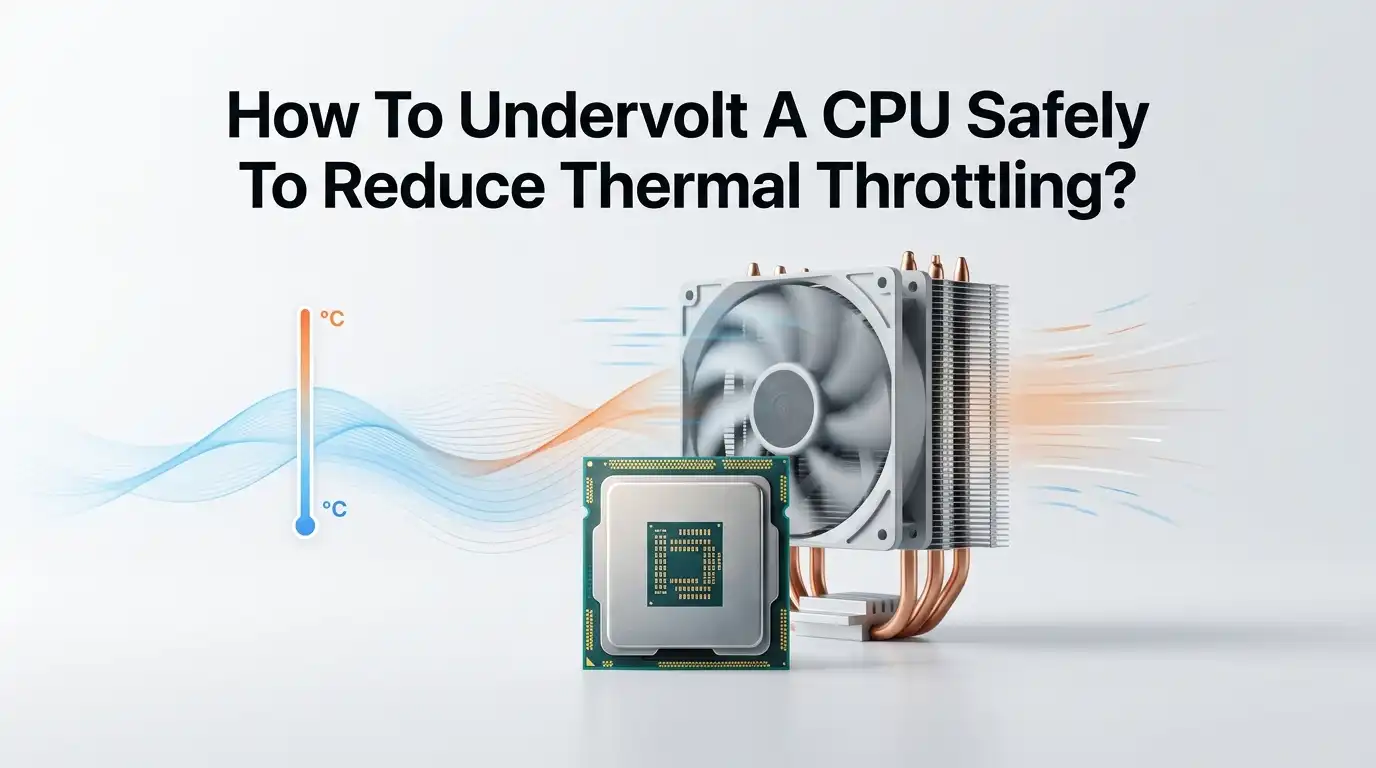
How To Undervolt A CPU Safely To Reduce Thermal Throttling?
Your computer slows down right when you need it most. You open a game or render a video, and suddenly the frame rate drops or the fans scream like a jet engine. This usually means one thing.
Your CPU is getting too hot and pulling back its own speed to protect itself. That behavior is called thermal throttling, and it quietly steals performance you already paid for.
The good news is you can fix this without buying new hardware. Undervolting is one of the smartest tricks available. You simply tell your CPU to do the same work using less voltage.
In a Nutshell:
- Undervolting lowers heat without lowering performance. You reduce the voltage your CPU receives while keeping its clock speed the same. This is the opposite of overclocking, and it often improves real world speed because the chip stops throttling.
- Undervolting is very safe when done in small steps. The worst common outcome is a crash or a blue screen. You simply reverse the last change and your CPU returns to normal. No permanent damage happens from going too low.
- The right tool depends on your CPU brand. Intel users often use Intel XTU or ThrottleStop. AMD Ryzen users use Curve Optimizer inside the BIOS. The BIOS method is the most stable for desktops.
- Stability testing is the most important step. A small voltage cut might look fine for an hour, then crash during a heavy task. You must run stress tests like OCCT, Prime95, or Cinebench to confirm safety.
- Expect temperature drops of 5C to 20C. Results depend on your chip and cooler. Laptop owners usually see the biggest gains because their cooling is tight and throttling is common.
What Thermal Throttling Actually Is And Why It Hurts You
Thermal throttling is your CPU’s built in safety brake. Every processor has a maximum safe temperature, often around 95C to 100C. When the chip hits that limit, it lowers its clock speed on purpose. This drops the temperature but also drops your performance.
You feel this as stutter, lag, and sudden slowdowns during heavy work. Gaming gets choppy. Video exports take longer. Even simple tasks can feel sluggish on a hot laptop.
The frustrating part is that the hardware is fine. It is just protecting itself. The root cause is usually too much heat in too small a space, especially in thin laptops. Undervolting attacks this problem directly by cutting the heat at its source, which is the electrical power flowing into the chip.
How Undervolting Stops Throttling Without Losing Speed
Here is the simple science. A CPU needs voltage to run at a given speed. Most factory voltage settings are higher than they need to be. Manufacturers add a safety buffer so every chip works, even the weaker ones.
Your specific chip is probably better than that buffer assumes. This means you can lower the voltage and still hit the same clock speeds. Heat output is tied closely to voltage, so even a small cut produces a real temperature drop.
When temperatures fall, your CPU stays below its throttle point for longer. It can hold high clock speeds during demanding tasks instead of slamming on the brakes. So you often gain performance and lose heat at the same time. That is why undervolting feels almost like free speed.
Check If Your CPU Even Supports Undervolting
Not every CPU lets you undervolt easily. You should check this before downloading anything. This single step saves a lot of frustration later.
Intel locked undervolting on many laptops after a security flaw called Plundervolt was discovered. The fix was a microcode update that disabled voltage control on some chips. If your XTU sliders are greyed out, this is likely the reason.
AMD Ryzen chips usually support undervolting through the BIOS using Curve Optimizer, and this works on most modern boards. Desktop Intel chips with a Z series chipset also allow BIOS undervolting.
A quick way to test is to open your tool of choice. If the voltage controls respond, you are good. If they are locked, the BIOS method is your backup plan.
Gather The Right Tools Before You Start
You need a few free programs before touching any voltage setting. Having them ready makes the whole process smooth and safe.
HWiNFO64 is your monitoring tool. It shows live temperatures, voltage, clock speed, and throttling status. Keep it open during every test.
OCCT, Prime95, or Cinebench R23 are your stress testers. They push the CPU hard so you can confirm your settings are stable.
For changing voltage, your choice depends on your system. Intel XTU works well for Intel desktops and some laptops. ThrottleStop is great for Intel laptops, especially older ones. AMD Ryzen users use the BIOS Curve Optimizer.
Download these only from official sources. Avoid random websites that bundle extra software. A clean install protects you from junk and security risks.
How To Undervolt An Intel CPU Using Intel XTU
Intel XTU gives you a friendly window with sliders. Start by opening the program and finding the Core Voltage Offset slider.
Move the slider left in small steps, around minus 25mV at a time. Click Apply after each change. Watch HWiNFO for any change in temperature or behavior. Never jump straight to a big number, because that almost guarantees a crash.
After each cut, run a short stress test for a few minutes. If your system stays stable, lower the voltage again by another 25mV. Repeat until you find the point where your system crashes or shows errors.
When you hit instability, go back up by 25mV to 50mV for a safe margin.
Pros: Easy graphical interface, live feedback, no BIOS needed.
Cons: Settings can reset after sleep, some laptops have it locked, it must run at startup to stay active.
How To Undervolt An Intel Laptop Using ThrottleStop
ThrottleStop is the favorite tool for Intel laptops. It is more detailed but very reliable once set up. Open the program and click the FIVR button.
Select CPU Core in the FIVR window, then check the box that unlocks adjustable voltage. Choose the Adaptive option, then set your Offset Voltage. Start at minus 50mV for both Core and Cache. Always set Core and Cache to the same value to avoid odd behavior.
Click Apply, then OK. Run a stress test and watch your temperatures fall. Lower the offset by 10mV to 25mV at a time until you find your limit, then back off slightly.
Pros: Works on locked down laptops, deep control, includes extra throttling fixes.
Cons: Interface looks confusing at first, needs a startup task to load on boot, easy to misclick advanced settings.
How To Undervolt An AMD Ryzen CPU With Curve Optimizer
AMD makes undervolting clean through the BIOS. Restart your PC and enter the BIOS, usually by pressing Delete or F2. Find the PBO or Precision Boost Overdrive section.
Set PBO to Advanced, then open Curve Optimizer. Choose the All Core option to keep things simple. Set a negative value to lower voltage. A safe starting point is minus 5 to minus 10.
Save and reboot, then run a stress test in Windows. If stable, return to the BIOS and increase the negative number step by step. Many Ryzen chips handle minus 15 to minus 30 comfortably.
When you crash or see errors, reduce the value by 2 or 3 for safety.
Pros: Very stable, survives reboots, no extra software running, works during boot and shutdown too.
Cons: Requires BIOS comfort, per core tuning takes patience, results vary between chips.
How To Undervolt Directly In The BIOS Using Voltage Offset
Some users prefer the BIOS even on Intel systems. This method sticks permanently and never needs a startup program. Enter the BIOS and find the voltage section, often under OC Tweaker or CPU Configuration.
Look for CPU Core Voltage and switch it from Auto to Offset mode. Set the offset sign to minus, then enter a small value like 0.050V. Save and reboot into Windows.
Run your stress tests. If everything holds, return to the BIOS and lower the offset further in small steps. Keep notes of each value you try.
This approach is the most dependable for desktops because nothing can reset it.
Pros: Permanent, no software needed, applies at every boot, most stable option.
Cons: Beginners may feel nervous in the BIOS, a bad value can require a CMOS reset, menus differ by motherboard brand.
How To Stress Test And Confirm Your Undervolt Is Stable
This step is the heart of safe undervolting. A setting that looks fine for five minutes can still crash during a long heavy task. Skipping this leads to random crashes weeks later.
Run a long stress test for at least thirty minutes, ideally a few hours. OCCT and Prime95 push every core hard and expose weak settings fast. Cinebench R23 in loop mode is also excellent and mirrors real workloads.
Watch HWiNFO during the test. Look for crashes, freezes, blue screens, or calculation errors. Any of these means your voltage is too low.
If you see trouble, raise the voltage by one step and test again. Stability matters more than chasing the lowest possible number. A slightly higher voltage that never crashes beats an aggressive setting that fails under pressure.
What Voltage Values Are Safe To Start With
Beginners often ask how far they can go. The honest answer is that every chip is different, even two of the same model. This is why small steps matter so much.
For Intel laptops, minus 50mV to minus 100mV is a common safe range. Many chips handle minus 100mV with no issue. E cores on newer Intel CPUs can often take more, sometimes minus 125mV or beyond.
For AMD Ryzen with Curve Optimizer, start at minus 5 and climb toward minus 30 slowly. Many chips settle around minus 15 to minus 25.
Never set a huge value on your first try. The goal is to creep down until you find your chip’s edge, then step back for a comfortable buffer that survives daily use.
Pros And Cons Of Undervolting Your CPU
It helps to see the full picture before committing. Undervolting brings real benefits, but it is fair to know the trade offs too.
The main upside is lower heat with equal or better performance. Your fans run quieter, your laptop battery lasts longer, and throttling becomes rare. Many users report temperature drops between 5C and 20C. The risk is also low, since the worst case is a simple crash you can undo.
On the downside, the process takes patience. Finding the perfect value requires several test rounds. Some settings can reset and need a startup program to reload. A few systems lock undervolting entirely, leaving you with fewer options. Software based undervolts may also drop after sleep mode. Still, for most people the benefits clearly outweigh these small annoyances.
How To Make Your Undervolt Stick After Every Restart
A common complaint is that the undervolt disappears after a reboot or sleep. This happens with software tools that do not load automatically. The fix is simple but important.
For Intel XTU and ThrottleStop, create a startup task using Windows Task Scheduler. Set it to run with highest privileges at login. This forces your settings to apply every time the computer wakes up.
ThrottleStop also has a built in option to start with Windows. Enable it so you never lose your work.
If you used the BIOS or AMD Curve Optimizer, you do not need any of this. Those settings live in the firmware and load automatically every boot. This is the biggest reason many people prefer the BIOS route once they grow comfortable with it.
Troubleshooting Common Undervolting Problems
Sometimes things go sideways, and that is normal. Most issues have quick fixes. If your PC crashes or shows a blue screen, your voltage is simply too low. Raise it by one step and test again.
If your sliders are greyed out in XTU, your CPU is likely locked by microcode. Switch to the BIOS method or accept that your chip cannot undervolt through software.
If temperatures barely change, check whether you are power limit throttling instead of thermal throttling. In that case, adjusting power limits helps more than voltage cuts.
If your settings vanish after sleep, set up the startup task described earlier. And if you ever feel stuck, reset everything to default and start fresh. There is no shame in resetting, and it never harms your CPU.
Frequently Asked Questions
Is undervolting a CPU safe for long term use?
Yes, undervolting is safe for daily long term use. You are reducing power, not pushing the chip harder. The worst outcome is a crash, which you simply fix by raising the voltage. Unlike overclocking, it does not add stress or heat to your processor.
Will undervolting void my warranty?
This depends on your manufacturer and region. Some treat software undervolting as harmless, while others may consider voltage changes outside their terms. Check your specific warranty policy before starting. Software based undervolts usually leave no permanent trace once reversed.
Does undervolting reduce CPU performance?
In most cases, no. You keep the same clock speeds while lowering heat, so performance stays equal. It often improves real performance because your CPU stops throttling and holds higher speeds longer during heavy tasks.
How much temperature drop can I expect from undervolting?
Most users see drops between 5C and 20C, depending on the chip and cooler. Laptops usually gain the most because their cooling is tight and throttling is frequent. Desktops with good coolers may see smaller but still useful drops.
Can undervolting damage my CPU?
No, undervolting cannot physically damage your CPU. Lower voltage means less stress and less heat. The only side effect is possible instability if you go too far, and that just causes a crash. Restart, raise the voltage one step, and you are back to normal.
What is the best tool to undervolt a CPU?
The best tool depends on your hardware. Intel desktop users often pick XTU or the BIOS. Intel laptop users prefer ThrottleStop. AMD Ryzen users use Curve Optimizer in the BIOS. The BIOS method gives the most stable, permanent results.

Hi, I’m Rue Hessel, the founder and voice behind TheGenTool. I’m a passionate tech enthusiast who loves exploring the latest gadgets, smart devices, and electronics that shape our everyday lives. Through my website, I share honest, hands-on reviews of trending Amazon products to help you make smarter and more confident buying decisions.